How-to Guide
How to Upload a File
How to Upload a File
How to Upload a File
How to Upload a File
Follow these three simple steps to upload documents, images, or spreadsheets to Docufy and start analysing them with AI.
Follow these three simple steps to upload documents, images, or spreadsheets to Docufy and start analysing them with AI.
Follow these three simple steps to upload documents, images, or spreadsheets to Docufy and start analysing them with AI.
1
Open the Upload Dialog
Open the Upload Dialog
2
Select Your File & Start Uploading
Select Your File & Start Uploading
3
Upload Complete
1
Step 1 of 3
Open the Upload Dialog
Open the Upload Dialog
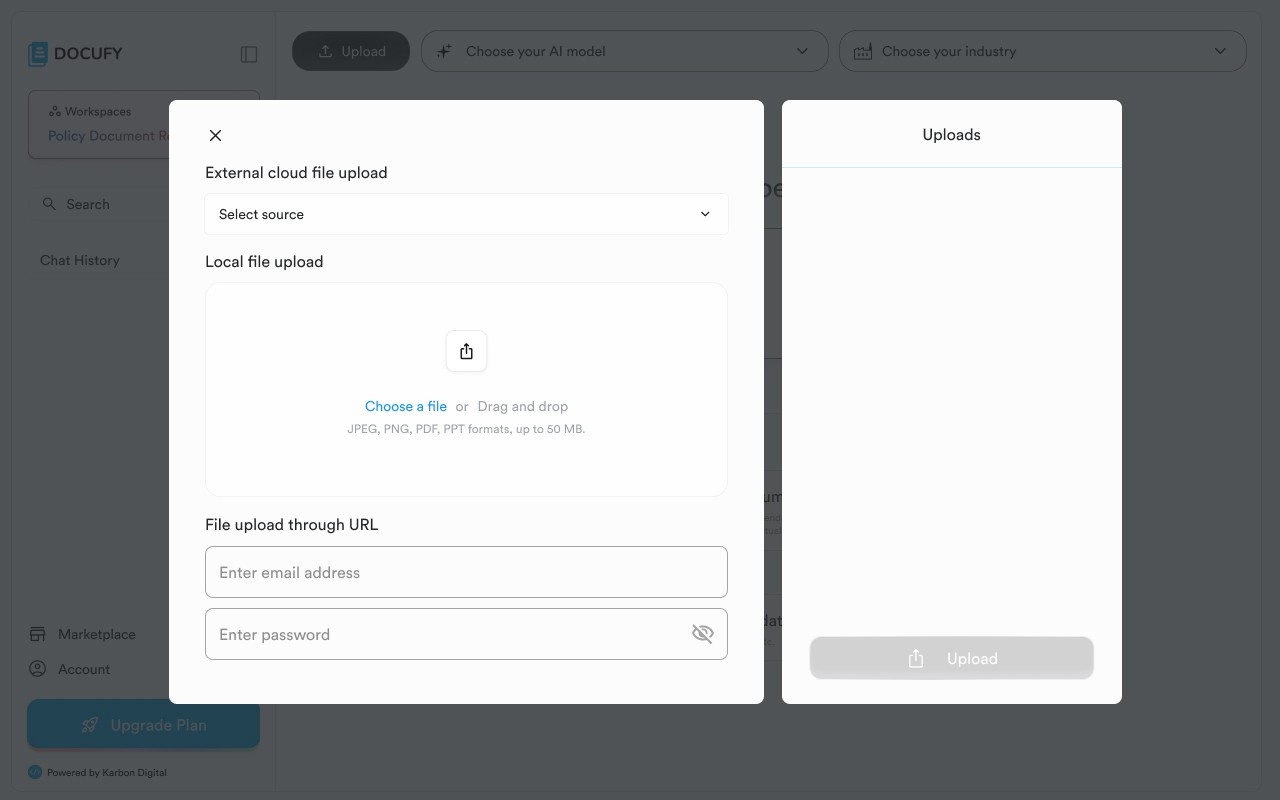
Click the Upload button in the top navigation bar to open the upload panel. You'll see three ways to add files to Docufy:
Click the Upload button in the top navigation bar to open the upload panel. You'll see three ways to add files to Docufy:
Click the Upload button in the top navigation bar to open the upload panel. You'll see three ways to add files to Docufy:
External cloud file upload — connect Google Drive, Dropbox, or other cloud sources.
External cloud file upload — connect Google Drive, Dropbox, or other cloud sources.
External cloud file upload — connect Google Drive, Dropbox, or other cloud sources.
Local file upload — drag and drop or choose a file from your computer (JPEG, PNG, PDF, PPT, up to 50 MB).
Local file upload — drag and drop or choose a file from your computer (JPEG, PNG, PDF, PPT, up to 50 MB).
Local file upload — drag and drop or choose a file from your computer (JPEG, PNG, PDF, PPT, up to 50 MB).
File upload through URL — paste a direct link to a publicly accessible file.
File upload through URL — paste a direct link to a publicly accessible file.
File upload through URL — paste a direct link to a publicly accessible file.
Pro tip
The Uploads panel on the right will show the status of all your files once you start uploading.
The Uploads panel on the right will show the status of all your files once you start uploading.
The Uploads panel on the right will show the status of all your files once you start uploading.
2
Step 2 of 3
Select Your File & Start Uploading
Select Your File & Start Uploading
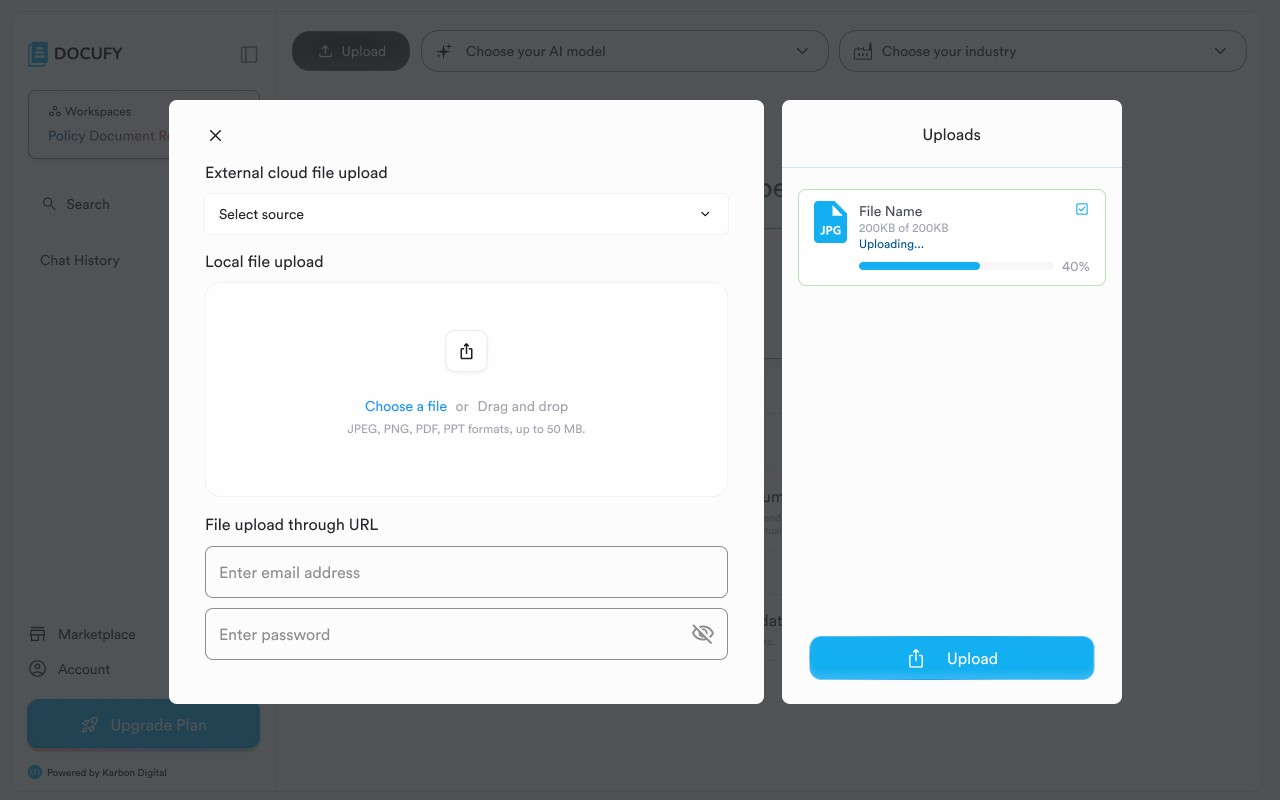
After selecting your file using one of the three methods, click the Upload button at the bottom of the Uploads panel. Docufy will immediately start transferring your file and show a real-time progress indicator.
After selecting your file using one of the three methods, click the Upload button at the bottom of the Uploads panel. Docufy will immediately start transferring your file and show a real-time progress indicator.
After selecting your file using one of the three methods, click the Upload button at the bottom of the Uploads panel. Docufy will immediately start transferring your file and show a real-time progress indicator.
A progress bar shows the percentage complete alongside the bytes transferred.
A progress bar shows the percentage complete alongside the bytes transferred.
A progress bar shows the percentage complete alongside the bytes transferred.
The status label changes from idle to “Uploading…” while the transfer is in progress.
The status label changes from idle to “Uploading…” while the transfer is in progress.
The status label changes from idle to “Uploading…” while the transfer is in progress.
You can queue multiple files and they will upload one after another.
You can queue multiple files and they will upload one after another.
You can queue multiple files and they will upload one after another.
Pro tip
Do not close the browser tab while an upload is in progress — this may interrupt the transfer.
Do not close the browser tab while an upload is in progress — this may interrupt the transfer.
Do not close the browser tab while an upload is in progress — this may interrupt the transfer.
3
Step 3 of 3
Upload Complete
Upload Complete
When the upload finishes, the progress bar disappears and the status changes to “Completed” in green. Your file is now available inside Docufy and ready to be used in conversations, summaries, or reports.
When the upload finishes, the progress bar disappears and the status changes to “Completed” in green. Your file is now available inside Docufy and ready to be used in conversations, summaries, or reports.
When the upload finishes, the progress bar disappears and the status changes to “Completed” in green. Your file is now available inside Docufy and ready to be used in conversations, summaries, or reports.
A green checkmark badge confirms the file was received successfully.
A green checkmark badge confirms the file was received successfully.
A green checkmark badge confirms the file was received successfully.
The file size shows the full size (e.g. 200 KB of 200 KB).
The file size shows the full size (e.g. 200 KB of 200 KB).
The file size shows the full size (e.g. 200 KB of 200 KB).
The Upload button becomes active again so you can continue adding more files.
The Upload button becomes active again so you can continue adding more files.
The Upload button becomes active again so you can continue adding more files.
Pro tip
Once uploaded, your file appears in your workspace and can be referenced in any chat conversation.
Once uploaded, your file appears in your workspace and can be referenced in any chat conversation.
Once uploaded, your file appears in your workspace and can be referenced in any chat conversation.
You're all set!
Your uploaded files are ready to use. Start a new conversation in Docufy and reference your document to get AI-powered summaries, analysis, and insights.
Your uploaded files are ready to use. Start a new conversation in Docufy and reference your document to get AI-powered summaries, analysis, and insights.
Your uploaded files are ready to use. Start a new conversation in Docufy and reference your document to get AI-powered summaries, analysis, and insights.
Select your upload method
Select your upload method
Monitor the upload progress
Monitor the upload progress
Confirm "Completed" status
Confirm "Completed" status



© 2026. All Rights Reserved.
DOCUFY® and DOCUFY AI® are registered trademarks of Karbon Digital Limited, registered with CIPO and the USPTO. All other trademarks are the property of their respective owners.
© 2026. All Rights Reserved.
DOCUFY® and DOCUFY AI® are registered trademarks of Karbon Digital Limited, registered with CIPO and the USPTO. All other trademarks are the property of their respective owners.
© 2026. All Rights Reserved.
DOCUFY® and DOCUFY AI® are registered trademarks of Karbon Digital Limited, registered with CIPO and the USPTO. All other trademarks are the property of their respective owners.
© 2026. All Rights Reserved.
DOCUFY® and DOCUFY AI® are registered trademarks of Karbon Digital Limited, registered with CIPO and the USPTO. All other trademarks are the property of their respective owners.