How-to Guide
How to Switch Industry
How to Switch Industry
How to Switch Industry
Follow these three steps to change Docufy’s industry context and start processing documents with AI that’s tuned specifically for your sector.
Follow these three steps to change Docufy’s industry context and start processing documents with AI that’s tuned specifically for your sector.
1
Open the Industry Dropdown
2
Select Your New Industry
3
Process New Documents
1
Step 1 of 3
Open the Industry Dropdown
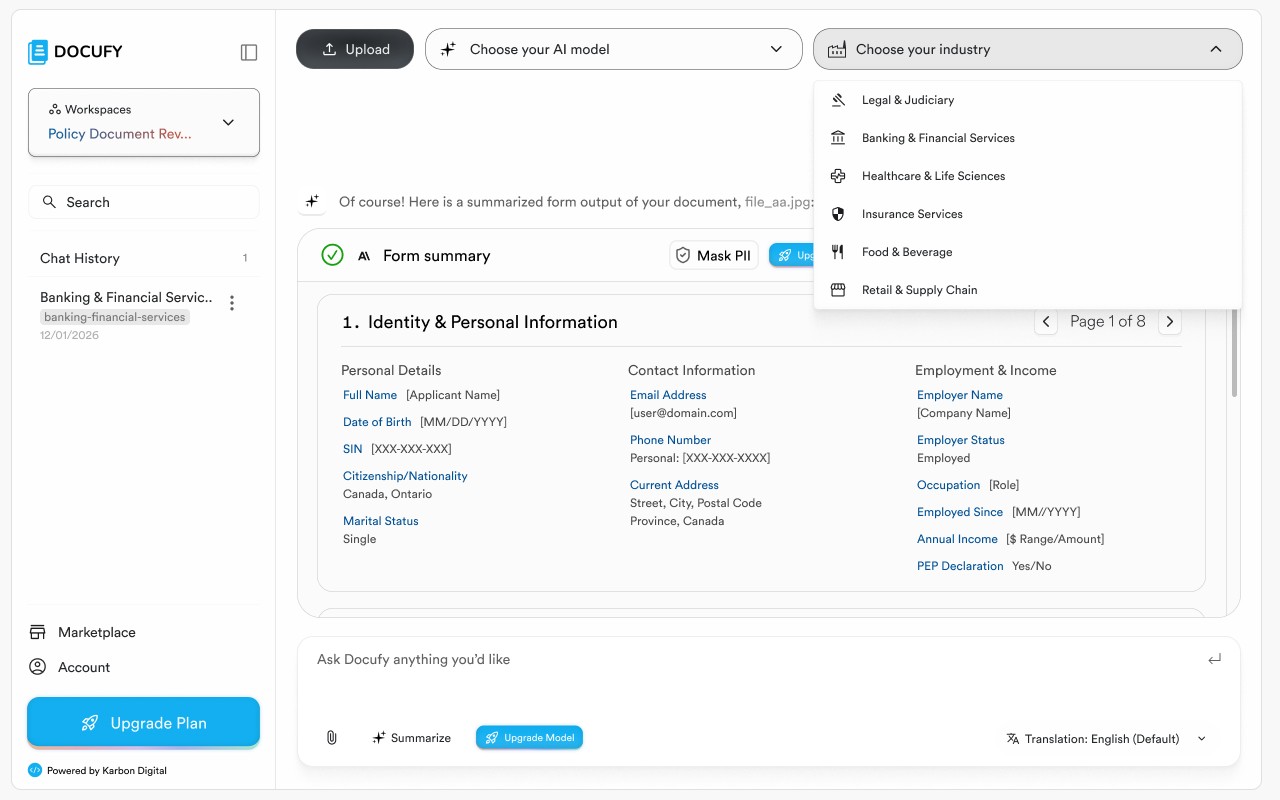
Click the “Choose your industry” button in the top navigation bar. A dropdown menu will appear listing all the available industry verticals that Docufy supports.
Click the “Choose your industry” button in the top navigation bar. A dropdown menu will appear listing all the available industry verticals that Docufy supports.
Click the “Choose your industry” button in the top navigation bar. A dropdown menu will appear listing all the available industry verticals that Docufy supports.
Legal & Judiciary — optimised for contracts, case documents, and court filings.
Legal & Judiciary — optimised for contracts, case documents, and court filings.
Legal & Judiciary — optimised for contracts, case documents, and court filings.
Banking & Financial Services — tailored for financial statements, KYC forms, and compliance reports.
Banking & Financial Services — tailored for financial statements, KYC forms, and compliance reports.
Banking & Financial Services — tailored for financial statements, KYC forms, and compliance reports.
Insurance Services — tuned for policy documents, claims, and underwriting.
Insurance Services — tuned for policy documents, claims, and underwriting.
Food & Beverage and Retail & Supply Chain — ideal for inventory, supplier contracts, and logistics.
Food & Beverage and Retail & Supply Chain — ideal for inventory, supplier contracts, and logistics.
Food & Beverage and Retail & Supply Chain — ideal for inventory, supplier contracts, and logistics.
Pro tip
Choosing the right industry unlocks specialized AI prompts, terminology, and structured output templates that are purpose-built for your sector.
Choosing the right industry unlocks specialized AI prompts, terminology, and structured output templates that are purpose-built for your sector.
Choosing the right industry unlocks specialized AI prompts, terminology, and structured output templates that are purpose-built for your sector.
2
Step 2 of 3
Select Your New Industry
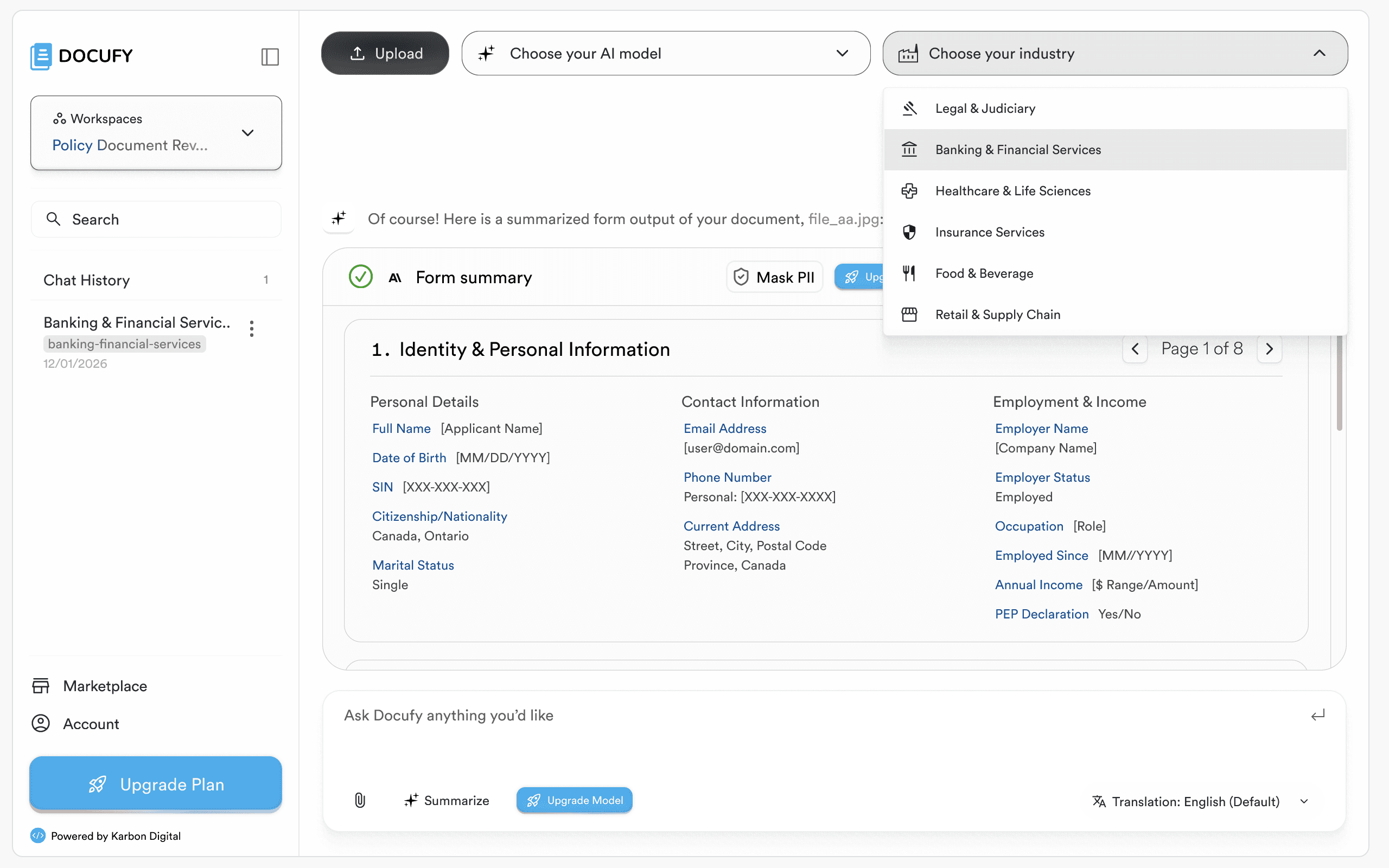
Click the industry that matches the document or task you want to work on. Docufy will apply that industry’s AI configuration to new conversations going forward.
Click the industry that matches the document or task you want to work on. Docufy will apply that industry’s AI configuration to new conversations going forward.
Click the industry that matches the document or task you want to work on. Docufy will apply that industry’s AI configuration to new conversations going forward.
The industry label in the top bar updates immediately to confirm your selection.
The industry label in the top bar updates immediately to confirm your selection.
The industry label in the top bar updates immediately to confirm your selection.
Industry settings are stored per-workspace so different teams can maintain their own defaults.
Industry settings are stored per-workspace so different teams can maintain their own defaults.
Industry settings are stored per-workspace so different teams can maintain their own defaults.
You can switch industries as often as needed — there is no limit.
You can switch industries as often as needed — there is no limit.
You can switch industries as often as needed — there is no limit.
Pro tip
Industry context only applies to new messages. Existing chat responses in the current conversation will not be re-processed under the new industry setting.
Industry context only applies to new messages. Existing chat responses in the current conversation will not be re-processed under the new industry setting.
Industry context only applies to new messages. Existing chat responses in the current conversation will not be re-processed under the new industry setting.
3
Step 3 of 3
Create a New Chat to Process Documents in the New Industry
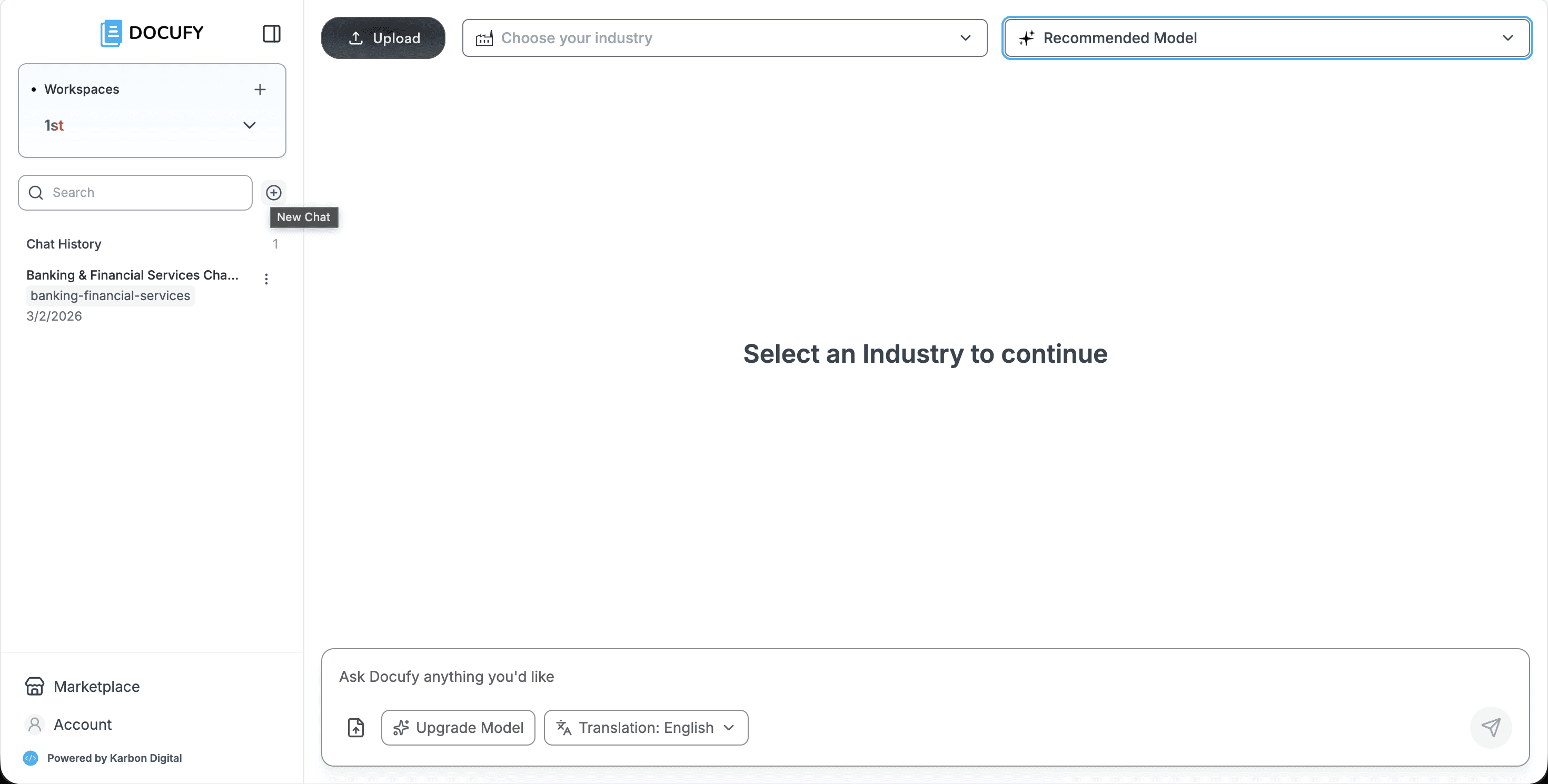
To analyze a document under the newly selected industry, you must start a fresh chat. Each Docufy chat is scoped to the industry that was active when it was created, so switching industry mid-conversation will not reprocess previous responses.
To analyze a document under the newly selected industry, you must start a fresh chat. Each Docufy chat is scoped to the industry that was active when it was created, so switching industry mid-conversation will not reprocess previous responses.
To analyze a document under the newly selected industry, you must start a fresh chat. Each Docufy chat is scoped to the industry that was active when it was created, so switching industry mid-conversation will not reprocess previous responses.
Click the “+” icon next to “Chat History” in the left sidebar, or create a brand-new workspace for this industry.
Click the “+” icon next to “Chat History” in the left sidebar, or create a brand-new workspace for this industry.
Click the “+” icon next to “Chat History” in the left sidebar, or create a brand-new workspace for this industry.
Upload your document in the new chat — Docufy will process it using the selected industry’s AI model and templates.
Upload your document in the new chat — Docufy will process it using the selected industry’s AI model and templates.
Upload your document in the new chat — Docufy will process it using the selected industry’s AI model and templates.
The Chat History panel will label the conversation with the industry it was created under, making it easy to organise and search later.
The Chat History panel will label the conversation with the industry it was created under, making it easy to organise and search later.
The Chat History panel will label the conversation with the industry it was created under, making it easy to organise and search later.
Pro tip
A best practice is to create one workspace per industry (e.g. “Legal Review”, “Insurance Claims”) so your chat history stays organized and each team always starts in the right context.
A best practice is to create one workspace per industry (e.g. “Legal Review”, “Insurance Claims”) so your chat history stays organized and each team always starts in the right context.
A best practice is to create one workspace per industry (e.g. “Legal Review”, “Insurance Claims”) so your chat history stays organized and each team always starts in the right context.
Industry switched — ready to go!
Docufy is now configured for your chosen industry. Remember to open a new chat whenever you want to process a document under the new industry context.
Docufy is now configured for your chosen industry. Remember to open a new chat whenever you want to process a document under the new industry context.
Docufy is now configured for your chosen industry. Remember to open a new chat whenever you want to process a document under the new industry context.
Open the industry dropdown
Open the industry dropdown
Select your new industry
Select your new industry
Start a new chat and upload your document
Start a new chat and upload your document


© 2026. All Rights Reserved.
DOCUFY® and DOCUFY AI® are registered trademarks of Karbon Digital Limited, registered with CIPO and the USPTO. All other trademarks are the property of their respective owners.
© 2026. All Rights Reserved.
DOCUFY® and DOCUFY AI® are registered trademarks of Karbon Digital Limited, registered with CIPO and the USPTO. All other trademarks are the property of their respective owners.
© 2026. All Rights Reserved.
DOCUFY® and DOCUFY AI® are registered trademarks of Karbon Digital Limited, registered with CIPO and the USPTO. All other trademarks are the property of their respective owners.
© 2026. All Rights Reserved.
DOCUFY® and DOCUFY AI® are registered trademarks of Karbon Digital Limited, registered with CIPO and the USPTO. All other trademarks are the property of their respective owners.