How-to Guide
How to Switch AI Models
How to Switch AI Models
How to Switch AI Models
Follow these three steps to unlock premium AI models in Docufy and upgrade your workspace to faster, more powerful outputs.
Follow these three steps to unlock premium AI models in Docufy and upgrade your workspace to faster, more powerful outputs.
1
Open the AI Model Dropdown
2
Review the Upgrade Options
3
Confirm & Start Using the New Model
1
Step 1 of 3
Open the AI Model Dropdown
Open the AI Model Dropdown
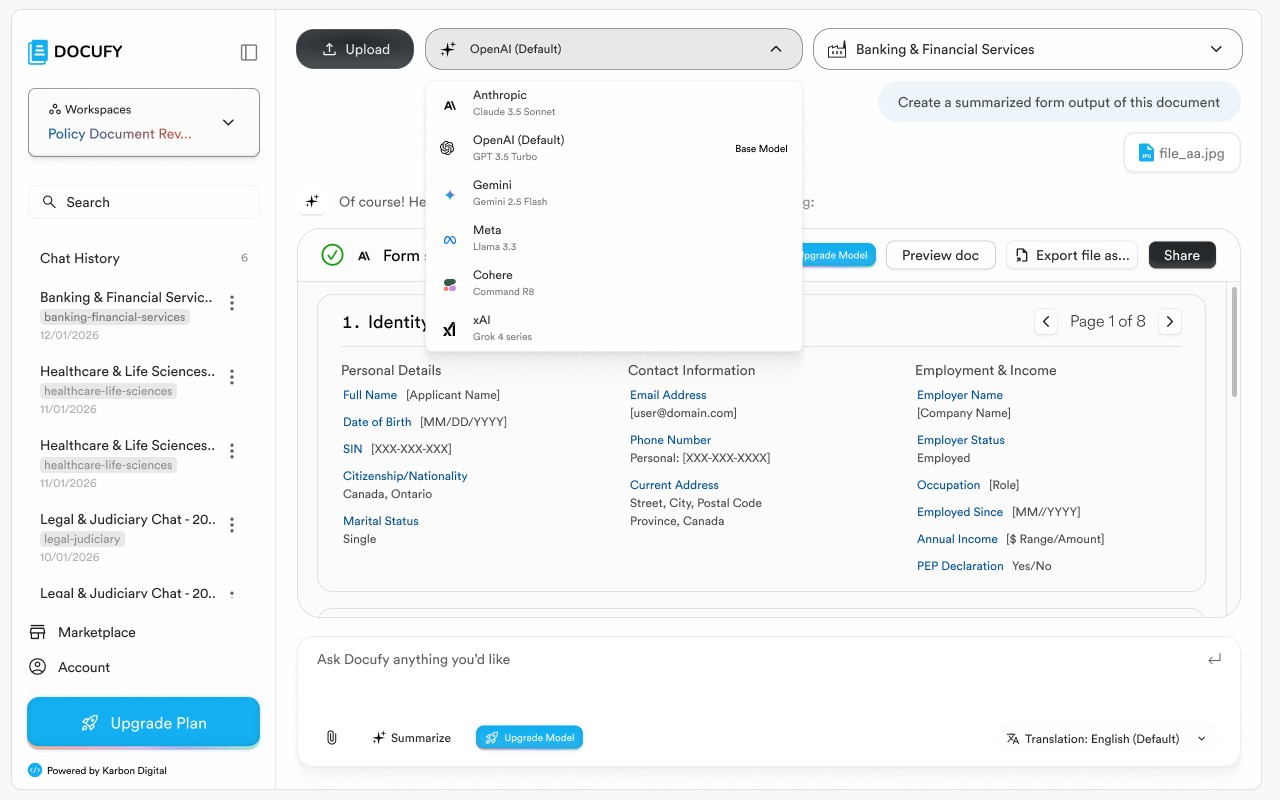
At the top of any chat, click the AI model selector button (shown as “OpenAI (Default)”). A dropdown will appear listing every available model on your plan, along with premium options you can unlock by upgrading.
At the top of any chat, click the AI model selector button (shown as “OpenAI (Default)”). A dropdown will appear listing every available model on your plan, along with premium options you can unlock by upgrading.
At the top of any chat, click the AI model selector button (shown as “OpenAI (Default)”). A dropdown will appear listing every available model on your plan, along with premium options you can unlock by upgrading.
The current active model is highlighted with a “Base Model” label next to it.
The current active model is highlighted with a “Base Model” label next to it.
The current active model is highlighted with a “Base Model” label next to it.
Premium models — such as Anthropic Claude, Gemini, Meta Llama, Cohere, and xAI Grok — are shown greyed-out until you upgrade.
Premium models — such as Anthropic Claude, Gemini, Meta Llama, Cohere, and xAI Grok — are shown greyed-out until you upgrade.
Premium models — such as Anthropic Claude, Gemini, Meta Llama, Cohere, and xAI Grok — are shown greyed-out until you upgrade.
You can also trigger the upgrade prompt by clicking the “Upgrade Model” button inside any AI response card.
You can also trigger the upgrade prompt by clicking the “Upgrade Model” button inside any AI response card.
You can also trigger the upgrade prompt by clicking the “Upgrade Model” button inside any AI response card.
Pro tip
The model you select applies only to the current chat session. Switch models at any time without losing your conversation history.
The model you select applies only to the current chat session. Switch models at any time without losing your conversation history.
The model you select applies only to the current chat session. Switch models at any time without losing your conversation history.
2
Step 2 of 3
Review the Upgrade Options
Review the Upgrade Options
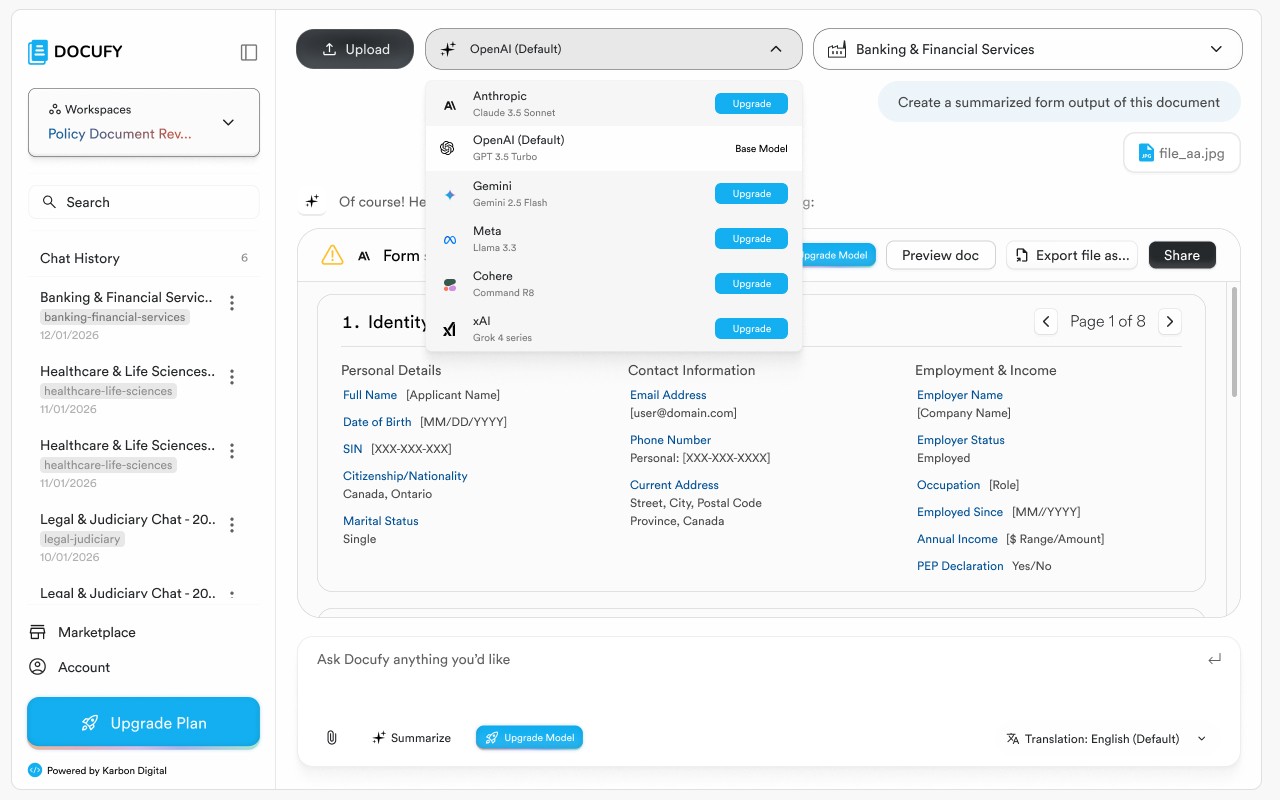
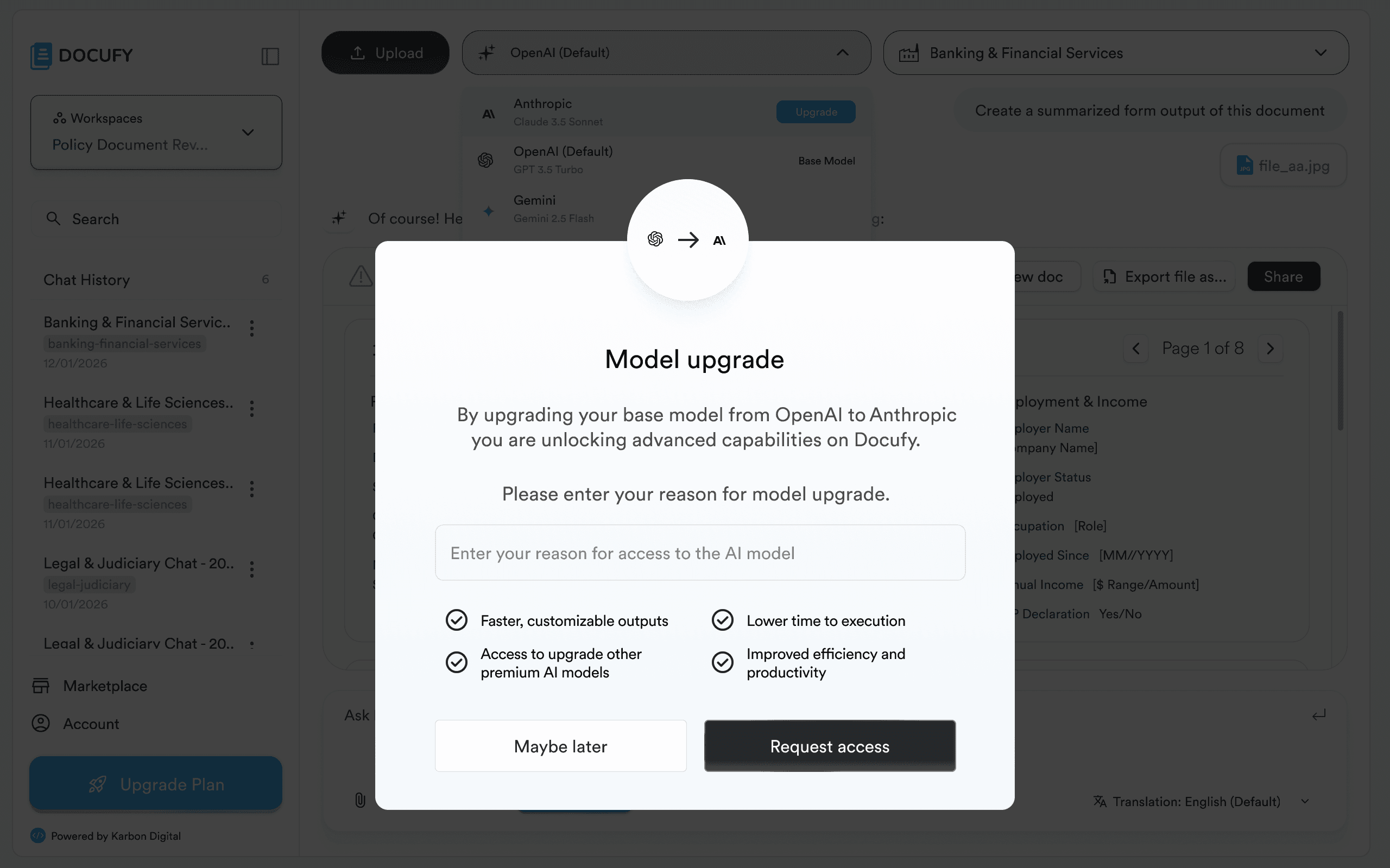
Selecting a premium model opens the “Upgrade your base model” modal. This screen explains what you’ll gain by switching from OpenAI (Default) to a more advanced AI.
Selecting a premium model opens the “Upgrade your base model” modal. This screen explains what you’ll gain by switching from OpenAI (Default) to a more advanced AI.
Selecting a premium model opens the “Upgrade your base model” modal. This screen explains what you’ll gain by switching from OpenAI (Default) to a more advanced AI.
Faster, customizable outputs tailored to your industry and workflow.
Faster, customizable outputs tailored to your industry and workflow.
Faster, customizable outputs tailored to your industry and workflow.
Lower time to execution — the upgraded model processes longer documents more quickly.
Lower time to execution — the upgraded model processes longer documents more quickly.
Lower time to execution — the upgraded model processes longer documents more quickly.
Access to other premium AI models included in the upgraded plan.
Access to other premium AI models included in the upgraded plan.
Access to other premium AI models included in the upgraded plan.
Improved overall efficiency and productivity across all Docufy tasks.
Improved overall efficiency and productivity across all Docufy tasks.
Improved overall efficiency and productivity across all Docufy tasks.
Pro tip
Click “Maybe later” to dismiss the modal and continue with the current model. You can upgrade at any time from the model dropdown or the “Upgrade Plan” button in the sidebar.
Click “Maybe later” to dismiss the modal and continue with the current model. You can upgrade at any time from the model dropdown or the “Upgrade Plan” button in the sidebar.
Click “Maybe later” to dismiss the modal and continue with the current model. You can upgrade at any time from the model dropdown or the “Upgrade Plan” button in the sidebar.
3
Step 3 of 3
Confirm & Start Using the New Model
Confirm & Start Using the New Model
Click “Upgrade now” to confirm. Docufy instantly switches to the new AI model and returns you to your conversation. All future messages in this workspace will use the upgraded model.
Click “Upgrade now” to confirm. Docufy instantly switches to the new AI model and returns you to your conversation. All future messages in this workspace will use the upgraded model.
Click “Upgrade now” to confirm. Docufy instantly switches to the new AI model and returns you to your conversation. All future messages in this workspace will use the upgraded model.
The model selector in the top bar updates to show the newly activated model.
The model selector in the top bar updates to show the newly activated model.
The model selector in the top bar updates to show the newly activated model.
Previous responses in the chat are preserved — only new messages use the upgraded model.
Previous responses in the chat are preserved — only new messages use the upgraded model.
Previous responses in the chat are preserved — only new messages use the upgraded model.
The “Upgrade Model” button inside response cards disappears once you’re on an upgraded plan.
The “Upgrade Model” button inside response cards disappears once you’re on an upgraded plan.
The “Upgrade Model” button inside response cards disappears once you’re on an upgraded plan.
Pro tip
Admins can set a default model for the entire organization from the Account settings page, so all staff members start with the best model for your use case.
Admins can set a default model for the entire organization from the Account settings page, so all staff members start with the best model for your use case.
Admins can set a default model for the entire organization from the Account settings page, so all staff members start with the best model for your use case.
You're all set!
Your uploaded files are ready to use. Start a new conversation in Docufy and reference your document to get AI-powered summaries, analysis, and insights.
Your uploaded files are ready to use. Start a new conversation in Docufy and reference your document to get AI-powered summaries, analysis, and insights.
Your uploaded files are ready to use. Start a new conversation in Docufy and reference your document to get AI-powered summaries, analysis, and insights.
Select your upload method
Select your upload method
Monitor the upload progress
Monitor the upload progress
Confirm "Completed" status
Confirm "Completed" status


© 2026. All Rights Reserved.
DOCUFY® and DOCUFY AI® are registered trademarks of Karbon Digital Limited, registered with CIPO and the USPTO. All other trademarks are the property of their respective owners.
© 2026. All Rights Reserved.
DOCUFY® and DOCUFY AI® are registered trademarks of Karbon Digital Limited, registered with CIPO and the USPTO. All other trademarks are the property of their respective owners.
© 2026. All Rights Reserved.
DOCUFY® and DOCUFY AI® are registered trademarks of Karbon Digital Limited, registered with CIPO and the USPTO. All other trademarks are the property of their respective owners.
© 2026. All Rights Reserved.
DOCUFY® and DOCUFY AI® are registered trademarks of Karbon Digital Limited, registered with CIPO and the USPTO. All other trademarks are the property of their respective owners.