How-to Guide
How to Start a New Chat
How to Start a New Chat
How to Start a New Chat
How to Start a New Chat
Follow these three steps to create a fresh workspace and kick off your first AI-powered conversation in Docufy.
Follow these three steps to create a fresh workspace and kick off your first AI-powered conversation in Docufy.
1
Create a New Workspace
2
Your New Workspace Is Ready
3
Start Chatting
1
Step 1 of 3
Create a New Workspace
Create a New Workspace
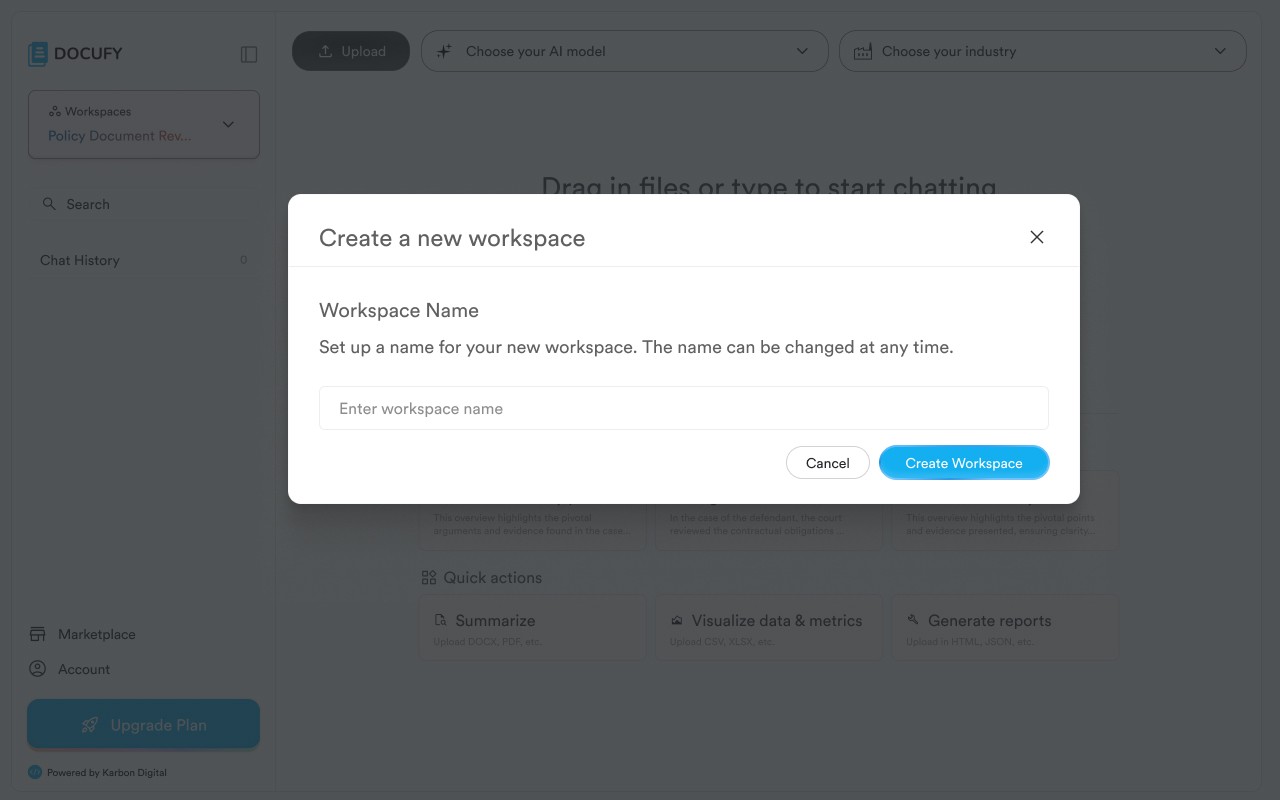
In the left sidebar, click “Create workspace” (the “+” button at the bottom of the workspace list). A modal dialog will appear prompting you to enter a name for your new workspace.
In the left sidebar, click “Create workspace” (the “+” button at the bottom of the workspace list). A modal dialog will appear prompting you to enter a name for your new workspace.
In the left sidebar, click “Create workspace” (the “+” button at the bottom of the workspace list). A modal dialog will appear prompting you to enter a name for your new workspace.
Type a descriptive name in the “Enter workspace name” field — for example, “Q4 Legal Review”.
Type a descriptive name in the “Enter workspace name” field — for example, “Q4 Legal Review”.
Type a descriptive name in the “Enter workspace name” field — for example, “Q4 Legal Review”.
The name can be changed at any time from the workspace settings.
The name can be changed at any time from the workspace settings.
The name can be changed at any time from the workspace settings.
Click “Create Workspace” to confirm, or “Cancel” to dismiss the dialog.
Click “Create Workspace” to confirm, or “Cancel” to dismiss the dialog.
Click “Create Workspace” to confirm, or “Cancel” to dismiss the dialog.
Pro tip
Keep workspace names short and meaningful — they appear in the sidebar and in shared links.
Keep workspace names short and meaningful — they appear in the sidebar and in shared links.
Keep workspace names short and meaningful — they appear in the sidebar and in shared links.
2
Step 2 of 3
Your New Workspace Is Ready
Your New Workspace Is Ready
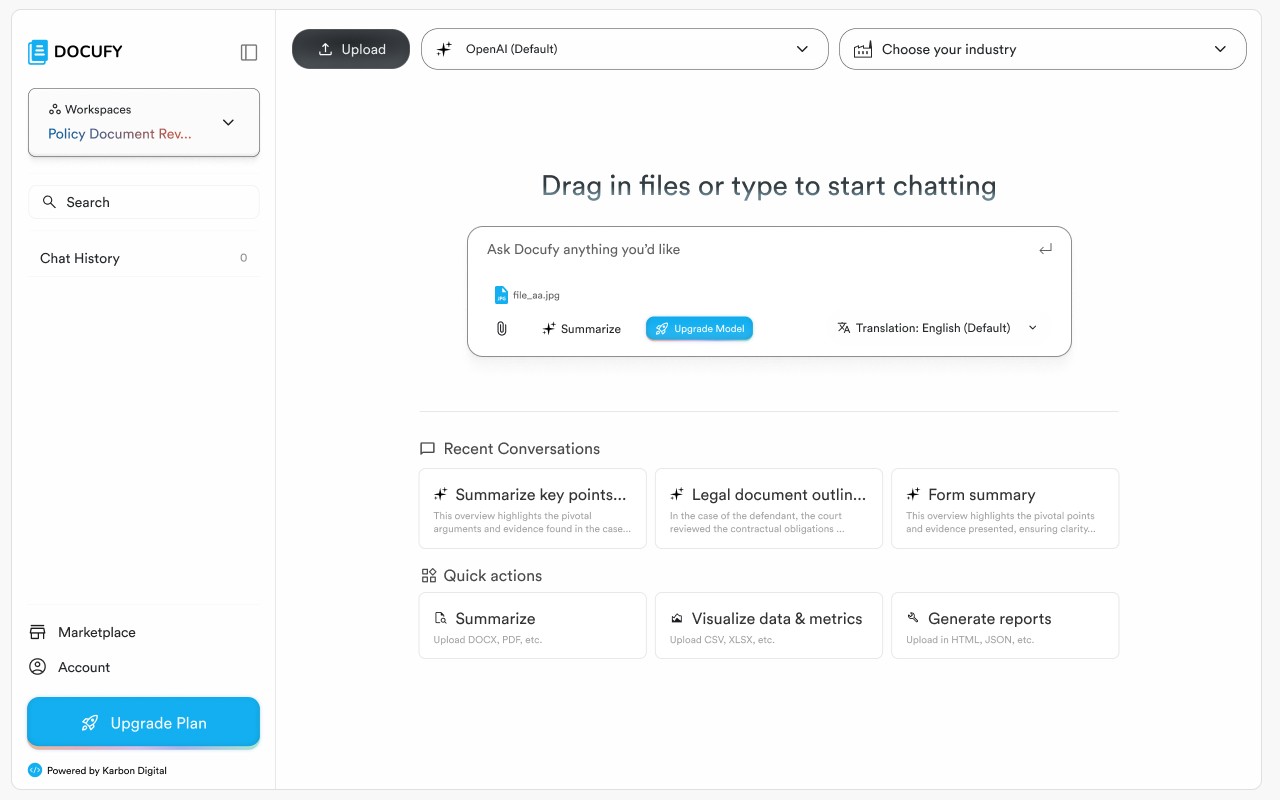
After creating the workspace, Docufy loads the empty-state landing screen. From here you can immediately start a conversation, upload a document, or pick a quick action.
After creating the workspace, Docufy loads the empty-state landing screen. From here you can immediately start a conversation, upload a document, or pick a quick action.
After creating the workspace, Docufy loads the empty-state landing screen. From here you can immediately start a conversation, upload a document, or pick a quick action.
Type your question or prompt directly into the chat input at the centre of the screen.
Type your question or prompt directly into the chat input at the centre of the screen.
Type your question or prompt directly into the chat input at the centre of the screen.
Drag and drop a file anywhere onto the page to attach it before sending.
Drag and drop a file anywhere onto the page to attach it before sending.
Drag and drop a file anywhere onto the page to attach it before sending.
Use the “Summarize”, “Visualize data & metrics”, or “Generate reports” quick-action cards to jump-start common tasks.
Use the “Summarize”, “Visualize data & metrics”, or “Generate reports” quick-action cards to jump-start common tasks.
Use the “Summarize”, “Visualize data & metrics”, or “Generate reports” quick-action cards to jump-start common tasks.
Pro tip
Select your preferred AI model and industry from the dropdown in the top bar before sending your first message for the most relevant responses.
Select your preferred AI model and industry from the dropdown in the top bar before sending your first message for the most relevant responses.
Select your preferred AI model and industry from the dropdown in the top bar before sending your first message for the most relevant responses.
3
Step 3 of 3
Start Chatting
Start Chatting
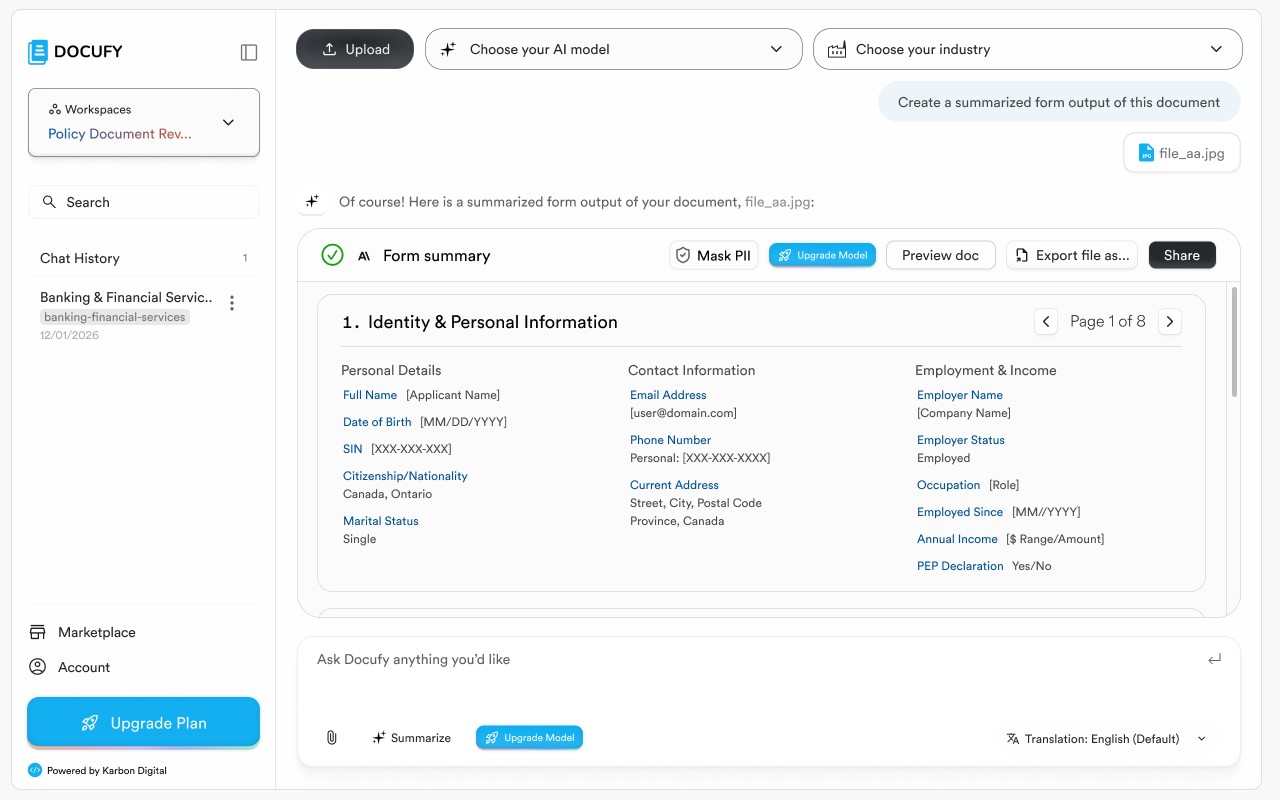
Send your first message and Docufy will respond immediately. Your conversation is automatically saved under the workspace’s Chat History so you can pick up where you left off at any time.
Send your first message and Docufy will respond immediately. Your conversation is automatically saved under the workspace’s Chat History so you can pick up where you left off at any time.
Send your first message and Docufy will respond immediately. Your conversation is automatically saved under the workspace’s Chat History so you can pick up where you left off at any time.
Each conversation appears as a named entry in the Chat History panel on the left.
Each conversation appears as a named entry in the Chat History panel on the left.
Each conversation appears as a named entry in the Chat History panel on the left.
Use “Mask PII” to hide sensitive personal information before sharing or exporting.
Use “Mask PII” to hide sensitive personal information before sharing or exporting.
Use “Mask PII” to hide sensitive personal information before sharing or exporting.
Export or share the AI response directly using the “Export file as…” and “Share” buttons in the response card.
Export or share the AI response directly using the “Export file as…” and “Share” buttons in the response card.
Export or share the AI response directly using the “Export file as…” and “Share” buttons in the response card.
Pro tip
You can start a brand-new chat within the same workspace at any time by clicking the “+” icon next to any entry in Chat History.
You can start a brand-new chat within the same workspace at any time by clicking the “+” icon next to any entry in Chat History.
You can start a brand-new chat within the same workspace at any time by clicking the “+” icon next to any entry in Chat History.
You’re ready to chat!
Your workspace is set up and your first conversation has been saved. Return any time to continue the discussion or start a new one from the sidebar.
Your workspace is set up and your first conversation has been saved. Return any time to continue the discussion or start a new one from the sidebar.
Your workspace is set up and your first conversation has been saved. Return any time to continue the discussion or start a new one from the sidebar.
Create a named workspace
Create a named workspace
Open the empty-state landing screen
Open the empty-state landing screen
Send your first message and review the AI response
Send your first message and review the AI response


© 2026. All Rights Reserved.
DOCUFY® and DOCUFY AI® are registered trademarks of Karbon Digital Limited, registered with CIPO and the USPTO. All other trademarks are the property of their respective owners.
© 2026. All Rights Reserved.
DOCUFY® and DOCUFY AI® are registered trademarks of Karbon Digital Limited, registered with CIPO and the USPTO. All other trademarks are the property of their respective owners.
© 2026. All Rights Reserved.
DOCUFY® and DOCUFY AI® are registered trademarks of Karbon Digital Limited, registered with CIPO and the USPTO. All other trademarks are the property of their respective owners.
© 2026. All Rights Reserved.
DOCUFY® and DOCUFY AI® are registered trademarks of Karbon Digital Limited, registered with CIPO and the USPTO. All other trademarks are the property of their respective owners.