How-to Guide
How to Mask PII in AI Responses
How to Mask PII in AI Responses
How to Mask PII in AI Responses
Follow these two steps to instantly redact personally identifiable information from any Docufy AI response card - perfect for screen-sharing, exporting, or reviewing sensitive documents without exposing private data.
Follow these two steps to instantly redact personally identifiable information from any Docufy AI response card - perfect for screen-sharing, exporting, or reviewing sensitive documents without exposing private data.
Follow these two steps to instantly redact personally identifiable information from any Docufy AI response card - perfect for screen-sharing, exporting, or reviewing sensitive documents without exposing private data.
1
Locate the “Mask PII” Button in the Response Toolbar
Locate the “Mask PII” Button in the Response Toolbar
2
Click “Mask PII” to Redact Sensitive Fields Instantly
Click “Mask PII” to Redact Sensitive Fields Instantly
1
Step 1 of 2
Locate the “Mask PII” Button in the Response Toolbar
Locate the “Mask PII” Button in the Response Toolbar
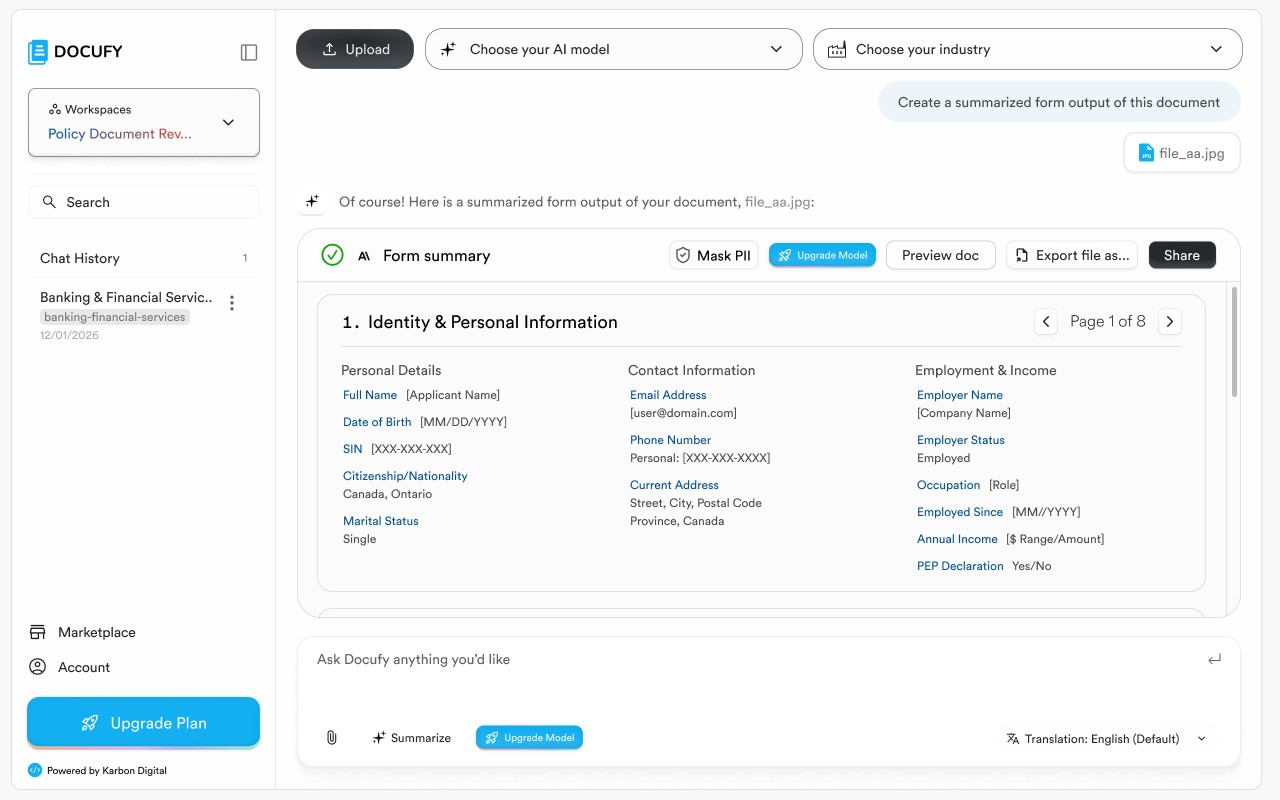
After Docufy generates an AI response — such as a Form Summary or document analysis — look for the response card toolbar. Directly inside the card header you’ll see a row of action buttons: a green checkmark status, “Mask PII”, “Upgrade Model”, “Preview doc”, “Export file as…”, and “Share”. The “Mask PII” button is the shield icon immediately to the right of the AI indicator.
After Docufy generates an AI response — such as a Form Summary or document analysis — look for the response card toolbar. Directly inside the card header you’ll see a row of action buttons: a green checkmark status, “Mask PII”, “Upgrade Model”, “Preview doc”, “Export file as…”, and “Share”. The “Mask PII” button is the shield icon immediately to the right of the AI indicator.
After Docufy generates an AI response — such as a Form Summary or document analysis — look for the response card toolbar. Directly inside the card header you’ll see a row of action buttons: a green checkmark status, “Mask PII”, “Upgrade Model”, “Preview doc”, “Export file as…”, and “Share”. The “Mask PII” button is the shield icon immediately to the right of the AI indicator.
“Mask PII” appears on every AI response card that contains structured or form-extracted output — it is always visible, not hidden behind a menu.
“Mask PII” appears on every AI response card that contains structured or form-extracted output — it is always visible, not hidden behind a menu.
“Mask PII” appears on every AI response card that contains structured or form-extracted output — it is always visible, not hidden behind a menu.
The button shows a shield icon alongside the label “Mask PII” in its default (off) state, with no highlight or fill.
The button shows a shield icon alongside the label “Mask PII” in its default (off) state, with no highlight or fill.
The button shows a shield icon alongside the label “Mask PII” in its default (off) state, with no highlight or fill.
In the example screenshot the Form Summary card shows “1. Identity & Personal Information” with full readable values: Full Name → [Applicant Name], Date of Birth → [MM/DD/YYYY], SIN → [XXX-XXX-XXX], Email Address, Phone Number, Current Address, and Employment & Income fields.
In the example screenshot the Form Summary card shows “1. Identity & Personal Information” with full readable values: Full Name → [Applicant Name], Date of Birth → [MM/DD/YYYY], SIN → [XXX-XXX-XXX], Email Address, Phone Number, Current Address, and Employment & Income fields.
In the example screenshot the Form Summary card shows “1. Identity & Personal Information” with full readable values: Full Name → [Applicant Name], Date of Birth → [MM/DD/YYYY], SIN → [XXX-XXX-XXX], Email Address, Phone Number, Current Address, and Employment & Income fields.
The underlying document (file_aa.jpg) is shown in the conversation thread above the card, confirming which source file the summary was generated from.
The underlying document (file_aa.jpg) is shown in the conversation thread above the card, confirming which source file the summary was generated from.
The underlying document (file_aa.jpg) is shown in the conversation thread above the card, confirming which source file the summary was generated from.
Pro tip
Mask PII is available on Form Summary cards, document analysis outputs, and any structured AI response that Docufy has extracted field values from. If the button is greyed out, the response does not contain detected PII fields.
Mask PII is available on Form Summary cards, document analysis outputs, and any structured AI response that Docufy has extracted field values from. If the button is greyed out, the response does not contain detected PII fields.
2
Step 2 of 2
Click “Mask PII” to Redact Sensitive Fields Instantly
Click “Mask PII” to Redact Sensitive Fields Instantly
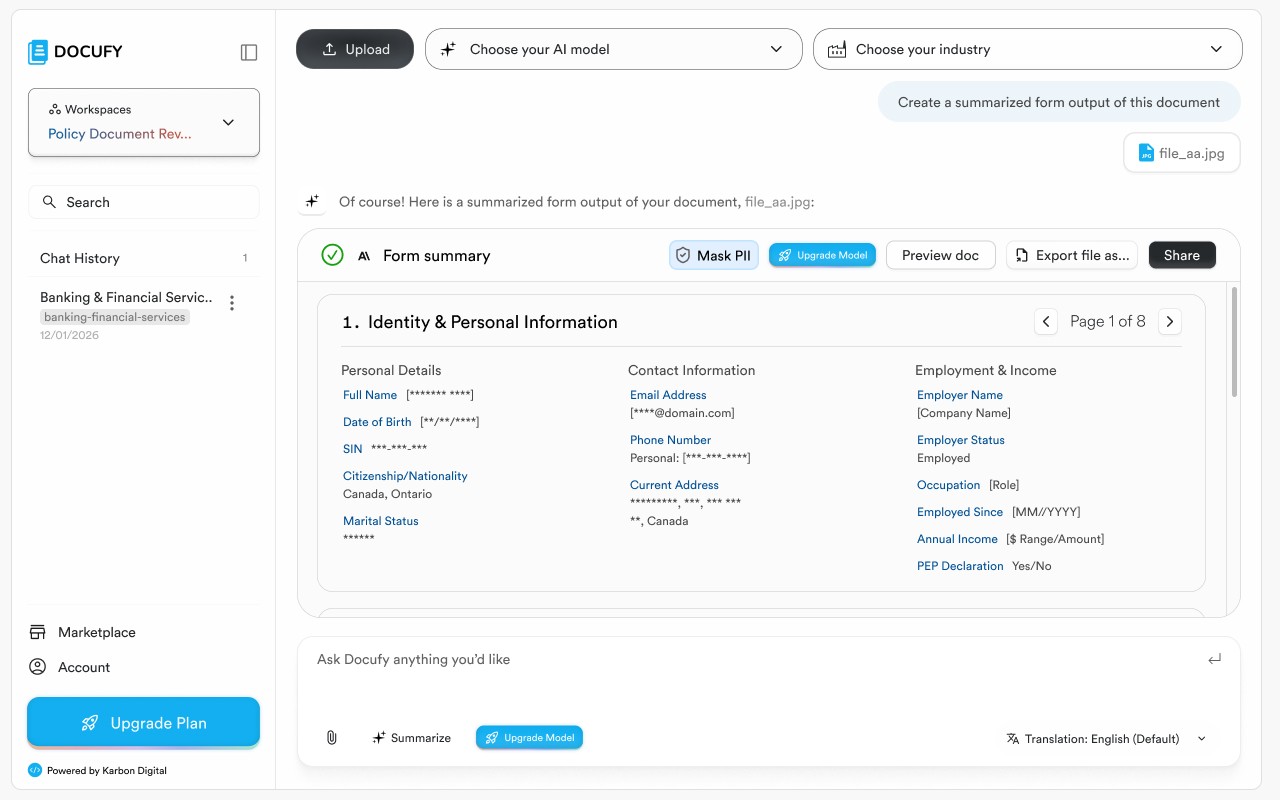
Click the “Mask PII” button once. Docufy immediately scans all detected personally identifiable information in the response card and replaces the values with asterisk-masked placeholders — without reloading the page or re-running the AI. The button highlights in blue to confirm masking is active.
Click the “Mask PII” button once. Docufy immediately scans all detected personally identifiable information in the response card and replaces the values with asterisk-masked placeholders — without reloading the page or re-running the AI. The button highlights in blue to confirm masking is active.
Click the “Mask PII” button once. Docufy immediately scans all detected personally identifiable information in the response card and replaces the values with asterisk-masked placeholders — without reloading the page or re-running the AI. The button highlights in blue to confirm masking is active.
The “Mask PII” button turns blue and appears filled/highlighted, giving a persistent visual indicator that masking is on for this response.
The “Mask PII” button turns blue and appears filled/highlighted, giving a persistent visual indicator that masking is on for this response.
The “Mask PII” button turns blue and appears filled/highlighted, giving a persistent visual indicator that masking is on for this response.
Personal Details: Full Name becomes “[******* ****]”, Date of Birth becomes “[**//**/****]”, SIN becomes “***-***-***”, and Marital Status becomes “******”.
Personal Details: Full Name becomes “[******* ****]”, Date of Birth becomes “[**//**/****]”, SIN becomes “***-***-***”, and Marital Status becomes “******”.
Personal Details: Full Name becomes “[******* ****]”, Date of Birth becomes “[**//**/****]”, SIN becomes “***-***-***”, and Marital Status becomes “******”.
Contact Information: Email Address value changes to “[****@domain.com]”, Phone Number changes to “[***-***-****]”, and Current Address street lines are replaced with “********, ***, *** ***”.
Contact Information: Email Address value changes to “[****@domain.com]”, Phone Number changes to “[***-***-****]”, and Current Address street lines are replaced with “********, ***, *** ***”.
Contact Information: Email Address value changes to “[****@domain.com]”, Phone Number changes to “[***-***-****]”, and Current Address street lines are replaced with “********, ***, *** ***”.
Non-sensitive label fields and structural values (like “Canada” for Citizenship/Nationality country, “Employed” for Employer Status, and employment category labels) are left unmasked so the form structure remains readable.
Non-sensitive label fields and structural values (like “Canada” for Citizenship/Nationality country, “Employed” for Employer Status, and employment category labels) are left unmasked so the form structure remains readable.
Non-sensitive label fields and structural values (like “Canada” for Citizenship/Nationality country, “Employed” for Employer Status, and employment category labels) are left unmasked so the form structure remains readable.
Pro tip
Mask PII is session-only and non-destructive — the original extracted values are never deleted. Click “Mask PII” again to toggle masking off and restore all field values instantly. This means you can safely share your screen or take a screenshot of the masked view without permanently altering the underlying data.
Mask PII is session-only and non-destructive — the original extracted values are never deleted. Click “Mask PII” again to toggle masking off and restore all field values instantly. This means you can safely share your screen or take a screenshot of the masked view without permanently altering the underlying data.
PII masked — safe to share!
Sensitive field values are now hidden behind asterisk placeholders. The masking is non-destructive and session-only — click “Mask PII” again at any time to restore the original values.
Sensitive field values are now hidden behind asterisk placeholders. The masking is non-destructive and session-only — click “Mask PII” again at any time to restore the original values.
Sensitive field values are now hidden behind asterisk placeholders. The masking is non-destructive and session-only — click “Mask PII” again at any time to restore the original values.
Locate the “Mask PII” button in the response toolbar
Locate the “Mask PII” button in the response toolbar
Click once to redact all PII fields instantly
Click once to redact all PII fields instantly
Click again to toggle masking off and restore values
Click again to toggle masking off and restore values


© 2026. All Rights Reserved.
DOCUFY® and DOCUFY AI® are registered trademarks of Karbon Digital Limited, registered with CIPO and the USPTO. All other trademarks are the property of their respective owners.
© 2026. All Rights Reserved.
DOCUFY® and DOCUFY AI® are registered trademarks of Karbon Digital Limited, registered with CIPO and the USPTO. All other trademarks are the property of their respective owners.
© 2026. All Rights Reserved.
DOCUFY® and DOCUFY AI® are registered trademarks of Karbon Digital Limited, registered with CIPO and the USPTO. All other trademarks are the property of their respective owners.
© 2026. All Rights Reserved.
DOCUFY® and DOCUFY AI® are registered trademarks of Karbon Digital Limited, registered with CIPO and the USPTO. All other trademarks are the property of their respective owners.