How-to Guide
How to Connect to Marketplace Integrations
How to Connect to Marketplace Integrations
How to Connect to Marketplace Integrations
Follow these five steps to browse the Docufy Marketplace, find the right integration for your workflow, and connect your favourite platforms in minutes.
Follow these five steps to browse the Docufy Marketplace, find the right integration for your workflow, and connect your favourite platforms in minutes.
Follow these five steps to browse the Docufy Marketplace, find the right integration for your workflow, and connect your favourite platforms in minutes.
1
Open the Marketplace from the Sidebar
Open the Marketplace from the Sidebar
Open the Marketplace from the Sidebar
2
Browse All Integrations
Browse All Integrations
Browse All Integrations
3
Filter by Category
Filter by Category
Filter by Category
4
Review the Integration Overview
Review the Integration Overview
Review the Integration Overview
5
Connect and Confirm
Connect and Confirm
Connect and Confirm
1
Step 1 of 5
Open the Marketplace from the Sidebar
Open the Marketplace from the Sidebar
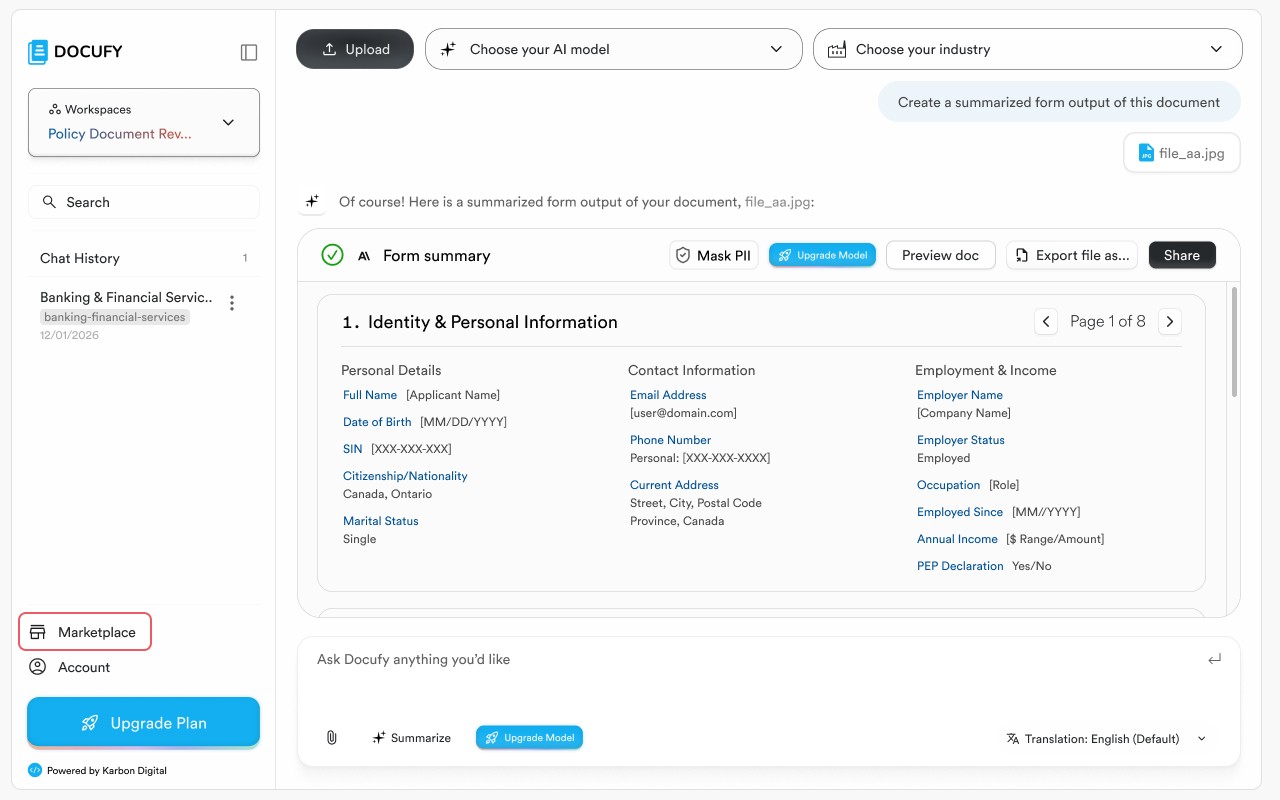
In the left sidebar, click the “Marketplace” button. It sits between your workspace list and the “Account” link at the bottom of the navigation. Clicking it takes you directly to the Marketplace landing page.
In the left sidebar, click the “Marketplace” button. It sits between your workspace list and the “Account” link at the bottom of the navigation. Clicking it takes you directly to the Marketplace landing page.
In the left sidebar, click the “Marketplace” button. It sits between your workspace list and the “Account” link at the bottom of the navigation. Clicking it takes you directly to the Marketplace landing page.
The “Marketplace” link is always visible in the sidebar — no need to be in a specific workspace to access it.
The “Marketplace” link is always visible in the sidebar — no need to be in a specific workspace to access it.
The “Marketplace” link is always visible in the sidebar — no need to be in a specific workspace to access it.
You can also reach the Marketplace via Account → Integrations if you prefer to manage all connections in one place.
You can also reach the Marketplace via Account → Integrations if you prefer to manage all connections in one place.
You can also reach the Marketplace via Account → Integrations if you prefer to manage all connections in one place.
Marketplace is available to all plan tiers, though connecting some integrations may require an upgraded plan.
Marketplace is available to all plan tiers, though connecting some integrations may require an upgraded plan.
Marketplace is available to all plan tiers, though connecting some integrations may require an upgraded plan.
Pro tip
Bookmark the Marketplace page for quick access. Once you connect an integration, it stays linked to your account across all your workspaces.
Bookmark the Marketplace page for quick access. Once you connect an integration, it stays linked to your account across all your workspaces.
2
Step 2 of 5
Browse All Integrations
Browse All Integrations
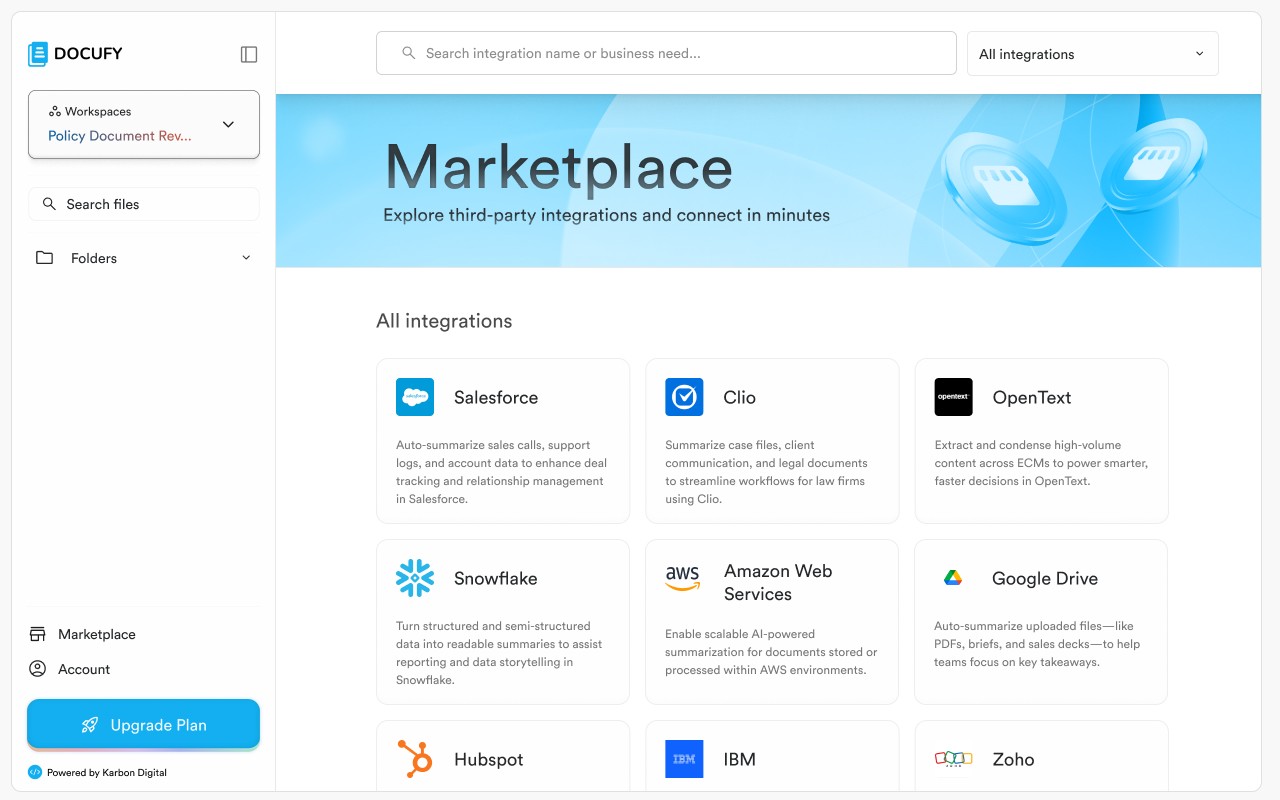
The Marketplace landing page shows every available third-party integration Docufy supports. Use the search bar or the category filter to find the platform you need.
The Marketplace landing page shows every available third-party integration Docufy supports. Use the search bar or the category filter to find the platform you need.
The Marketplace landing page shows every available third-party integration Docufy supports. Use the search bar or the category filter to find the platform you need.
Search by name or business need using the search bar at the top — e.g. type “Salesforce” or “file storage”.
Search by name or business need using the search bar at the top — e.g. type “Salesforce” or “file storage”.
Search by name or business need using the search bar at the top — e.g. type “Salesforce” or “file storage”.
Browse by category using the “All integrations” dropdown: External Drives, CRM, Case Management, Document Management, Data Management, Product Information Management, and Cloud Platforms.
Browse by category using the “All integrations” dropdown: External Drives, CRM, Case Management, Document Management, Data Management, Product Information Management, and Cloud Platforms.
Browse by category using the “All integrations” dropdown: External Drives, CRM, Case Management, Document Management, Data Management, Product Information Management, and Cloud Platforms.
Each integration card shows the platform logo, name, and a brief description of what it does in Docufy.
Each integration card shows the platform logo, name, and a brief description of what it does in Docufy.
Each integration card shows the platform logo, name, and a brief description of what it does in Docufy.
Available integrations include Salesforce, Clio, OpenText, Snowflake, Amazon Web Services, Google Drive, Hubspot, IBM, and Zoho.
Available integrations include Salesforce, Clio, OpenText, Snowflake, Amazon Web Services, Google Drive, Hubspot, IBM, and Zoho.
Available integrations include Salesforce, Clio, OpenText, Snowflake, Amazon Web Services, Google Drive, Hubspot, IBM, and Zoho.
Pro tip
Use the category filter to narrow down integrations by industry need. For example, law firms should look under “Case Management”, while financial teams will find their tools under “Client Relationship Management”.
Use the category filter to narrow down integrations by industry need. For example, law firms should look under “Case Management”, while financial teams will find their tools under “Client Relationship Management”.
3
Step 3 of 5
Filter by Category
Filter by Category
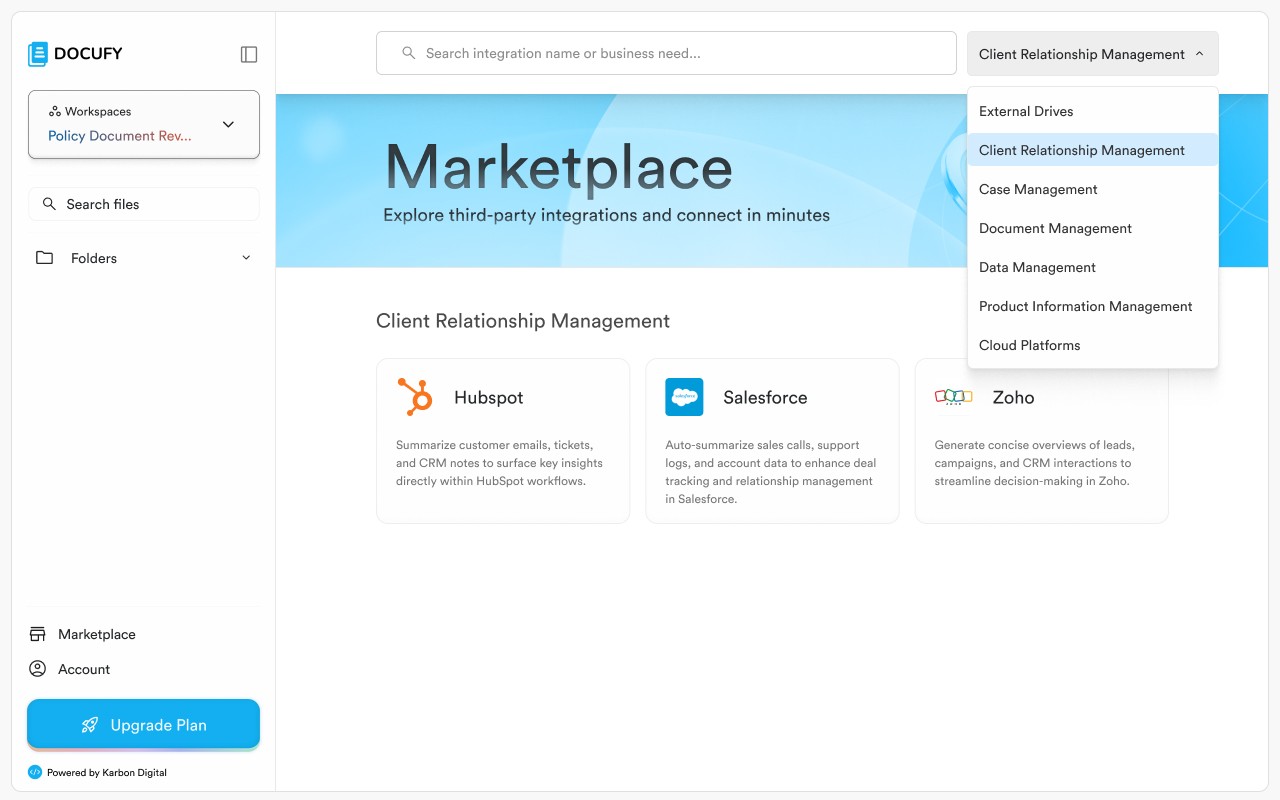
Click the “All integrations” dropdown at the top right of the Marketplace to filter the list by a specific integration category. The page updates instantly to show only the platforms in that group.
Click the “All integrations” dropdown at the top right of the Marketplace to filter the list by a specific integration category. The page updates instantly to show only the platforms in that group.
Click the “All integrations” dropdown at the top right of the Marketplace to filter the list by a specific integration category. The page updates instantly to show only the platforms in that group.
“Client Relationship Management” shows Hubspot, Salesforce, and Zoho — ideal for sales teams and client-facing roles.
“Client Relationship Management” shows Hubspot, Salesforce, and Zoho — ideal for sales teams and client-facing roles.
“Client Relationship Management” shows Hubspot, Salesforce, and Zoho — ideal for sales teams and client-facing roles.
“External Drives” lists cloud storage platforms like Google Drive for document-heavy workflows.
“External Drives” lists cloud storage platforms like Google Drive for document-heavy workflows.
“External Drives” lists cloud storage platforms like Google Drive for document-heavy workflows.
“Case Management” surfaces tools for legal and compliance teams.
“Case Management” surfaces tools for legal and compliance teams.
“Case Management” surfaces tools for legal and compliance teams.
“Cloud Platforms” and “Data Management” cover enterprise-scale infrastructure integrations.
“Cloud Platforms” and “Data Management” cover enterprise-scale infrastructure integrations.
“Cloud Platforms” and “Data Management” cover enterprise-scale infrastructure integrations.
Pro tip
If you’re unsure which category your tool falls under, use the search bar instead — it searches across all categories simultaneously.
If you’re unsure which category your tool falls under, use the search bar instead — it searches across all categories simultaneously.
3
Step 4 of 5
Review the Integration Overview
Review the Integration Overview
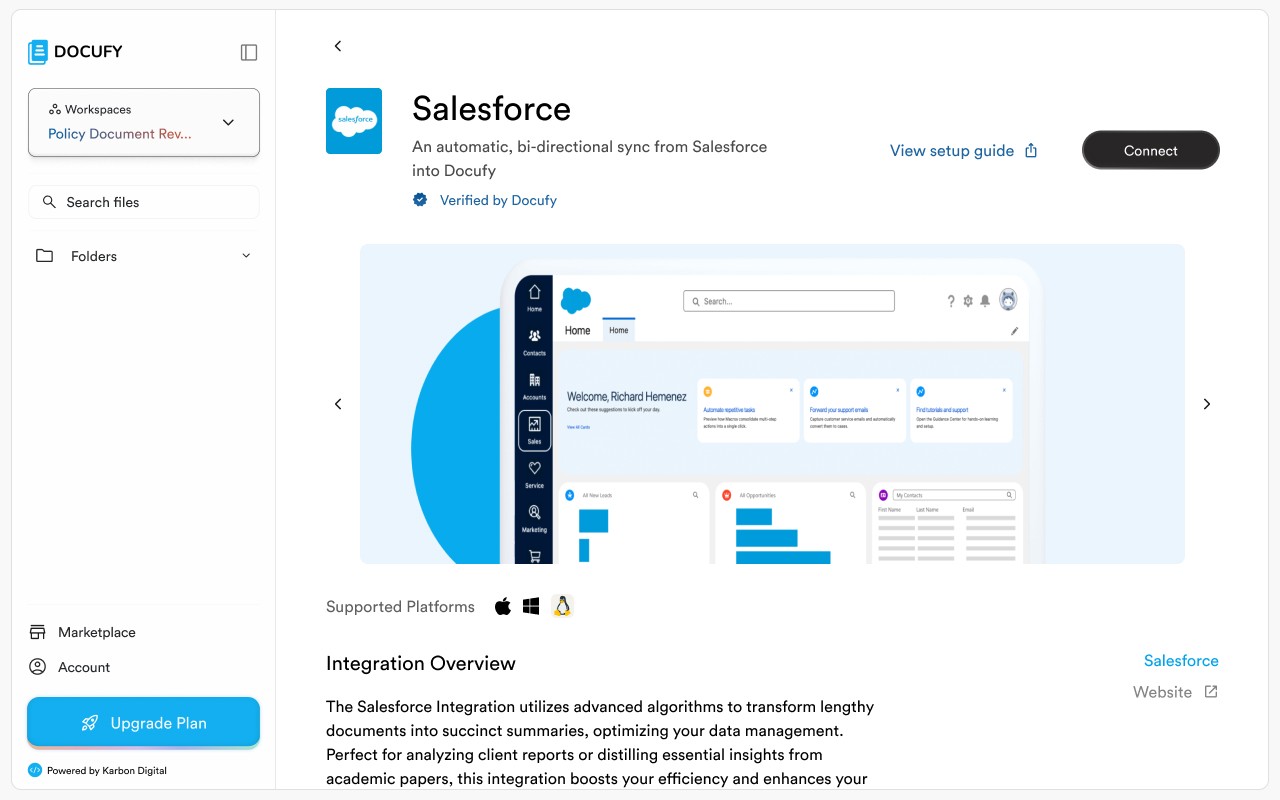
Click on any integration card to open its detail page. Here you can read the full Integration Overview, see which platforms are supported, and review a preview of what the connected experience looks like before committing.
Click on any integration card to open its detail page. Here you can read the full Integration Overview, see which platforms are supported, and review a preview of what the connected experience looks like before committing.
Click on any integration card to open its detail page. Here you can read the full Integration Overview, see which platforms are supported, and review a preview of what the connected experience looks like before committing.
The detail page shows the integration name, a short tagline, and a “Verified by Docufy” badge for trusted partners.
The detail page shows the integration name, a short tagline, and a “Verified by Docufy” badge for trusted partners.
The detail page shows the integration name, a short tagline, and a “Verified by Docufy” badge for trusted partners.
“Supported Platforms” icons confirm whether the integration works on macOS, Windows, and Linux.
“Supported Platforms” icons confirm whether the integration works on macOS, Windows, and Linux.
“Supported Platforms” icons confirm whether the integration works on macOS, Windows, and Linux.
A screenshot carousel lets you preview the connected interface inside Docufy.
A screenshot carousel lets you preview the connected interface inside Docufy.
A screenshot carousel lets you preview the connected interface inside Docufy.
Click “View setup guide” (the external link icon) to open platform-specific documentation before connecting.
Click “View setup guide” (the external link icon) to open platform-specific documentation before connecting.
Click “View setup guide” (the external link icon) to open platform-specific documentation before connecting.
Pro tip
Read the Integration Overview section carefully before connecting — it explains exactly how Docufy syncs data with the platform and what permissions are required.
Read the Integration Overview section carefully before connecting — it explains exactly how Docufy syncs data with the platform and what permissions are required.
3
Step 5 of 5
Connect and Confirm
Connect and Confirm
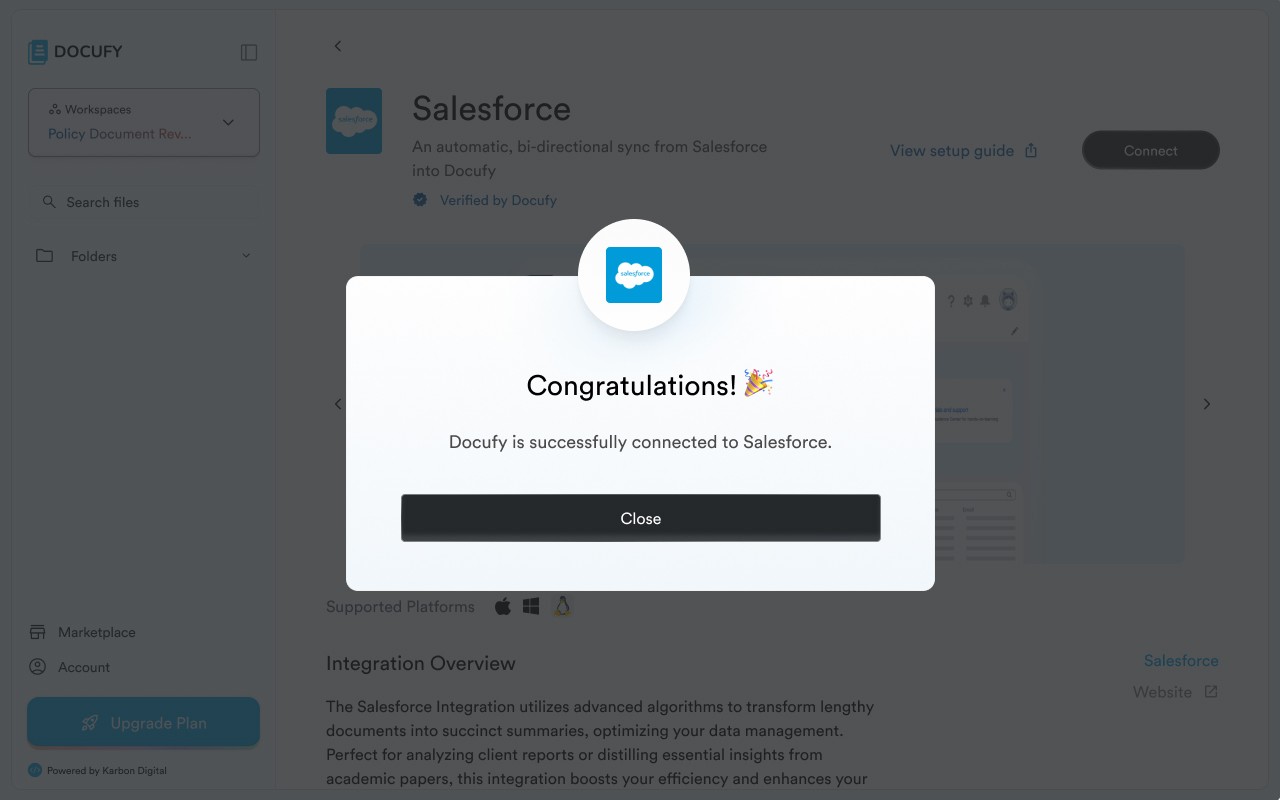
When you’re ready, click the black “Connect” button in the top-right corner of the integration detail page. Docufy will complete the authorisation and display a “Congratulations!” confirmation modal to confirm the connection is live.
When you’re ready, click the black “Connect” button in the top-right corner of the integration detail page. Docufy will complete the authorisation and display a “Congratulations!” confirmation modal to confirm the connection is live.
When you’re ready, click the black “Connect” button in the top-right corner of the integration detail page. Docufy will complete the authorisation and display a “Congratulations!” confirmation modal to confirm the connection is live.
Clicking “Connect” triggers the platform’s OAuth flow — you may be redirected to log in to the third-party service.
Clicking “Connect” triggers the platform’s OAuth flow — you may be redirected to log in to the third-party service.
Clicking “Connect” triggers the platform’s OAuth flow — you may be redirected to log in to the third-party service.
Once authorised, Docufy displays a confirmation: “Docufy is successfully connected to [Platform].”
Once authorised, Docufy displays a confirmation: “Docufy is successfully connected to [Platform].”
Once authorised, Docufy displays a confirmation: “Docufy is successfully connected to [Platform].”
Click “Close” on the confirmation modal to return to the integration detail page.
Click “Close” on the confirmation modal to return to the integration detail page.
Click “Close” on the confirmation modal to return to the integration detail page.
The “Connect” button updates to “Connected” to confirm the active link.
The “Connect” button updates to “Connected” to confirm the active link.
The “Connect” button updates to “Connected” to confirm the active link.
Pro tip
After connecting, go back to any AI response card and click “Export file as…” — your newly connected platform will now appear as a destination option in the External Cloud list.
After connecting, go back to any AI response card and click “Export file as…” — your newly connected platform will now appear as a destination option in the External Cloud list.
Integration connected — you’re all set!
Your third-party platform is now linked to Docufy. Export AI-generated outputs directly to it, or use it as a data source for smarter, faster document processing.
Your third-party platform is now linked to Docufy. Export AI-generated outputs directly to it, or use it as a data source for smarter, faster document processing.
Your third-party platform is now linked to Docufy. Export AI-generated outputs directly to it, or use it as a data source for smarter, faster document processing.
Open the Marketplace from the sidebar
Open the Marketplace from the sidebar
Find your platform by search or category
Find your platform by search or category
Review the integration overview
Review the integration overview
Click Connect and confirm
Click Connect and confirm



© 2026. All Rights Reserved.
DOCUFY® and DOCUFY AI® are registered trademarks of Karbon Digital Limited, registered with CIPO and the USPTO. All other trademarks are the property of their respective owners.
© 2026. All Rights Reserved.
DOCUFY® and DOCUFY AI® are registered trademarks of Karbon Digital Limited, registered with CIPO and the USPTO. All other trademarks are the property of their respective owners.
© 2026. All Rights Reserved.
DOCUFY® and DOCUFY AI® are registered trademarks of Karbon Digital Limited, registered with CIPO and the USPTO. All other trademarks are the property of their respective owners.
© 2026. All Rights Reserved.
DOCUFY® and DOCUFY AI® are registered trademarks of Karbon Digital Limited, registered with CIPO and the USPTO. All other trademarks are the property of their respective owners.