How-to Guide
How to Export a File
How to Export a File
How to Export a File
Follow these three steps to download or send a Docufy AI-generated output to your device or a connected cloud platform.
Follow these three steps to download or send a Docufy AI-generated output to your device or a connected cloud platform.
1
Click "Export file as"
2
Choose a Destination
3
Export File
1
Step 1 of 3
Click "Export file as"
Click "Export file as"
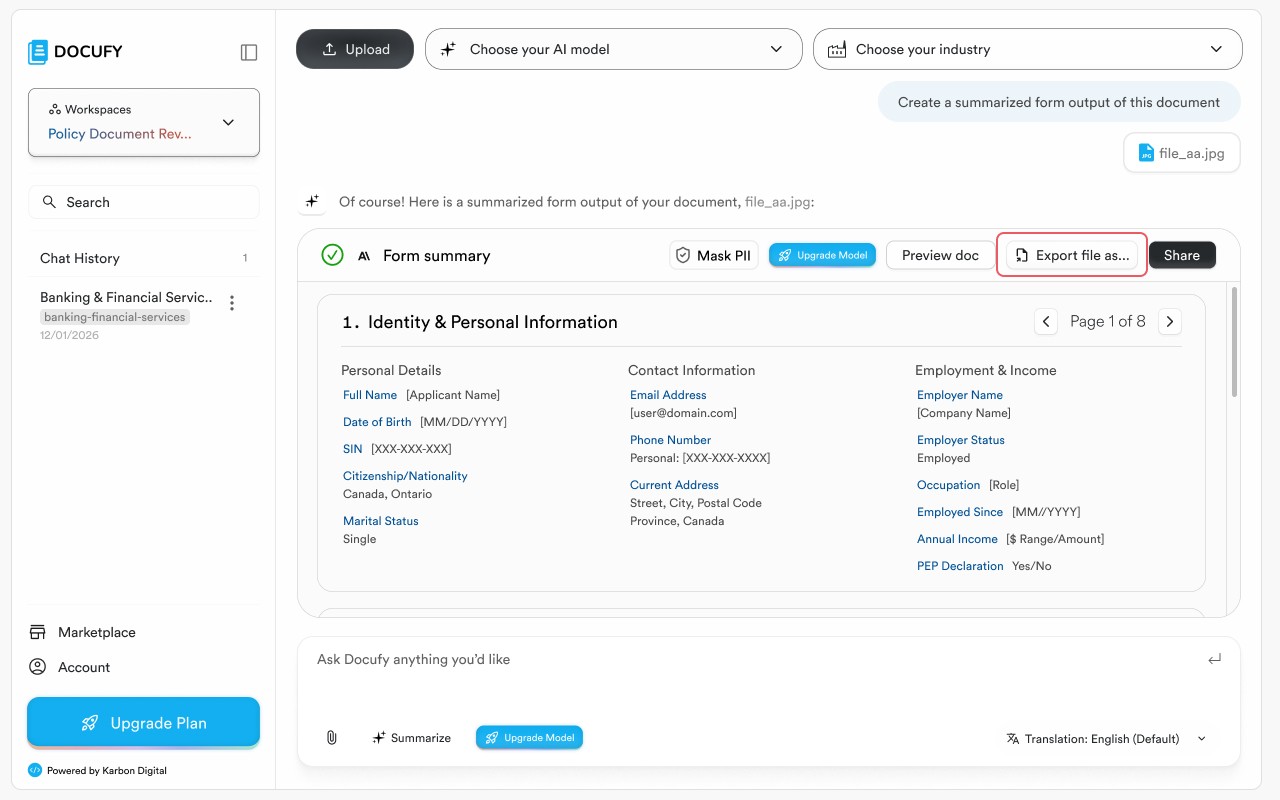
In any chat conversation, locate the AI-generated response card you want to export. Click the “Export file as…” button in the response toolbar — it sits between the document icon and the “Share” button. The Export modal will open immediately.
In any chat conversation, locate the AI-generated response card you want to export. Click the “Export file as…” button in the response toolbar — it sits between the document icon and the “Share” button. The Export modal will open immediately.
In any chat conversation, locate the AI-generated response card you want to export. Click the “Export file as…” button in the response toolbar — it sits between the document icon and the “Share” button. The Export modal will open immediately.
The “Export file as…” button is available on every AI response card that contains structured or summarised output.
The “Export file as…” button is available on every AI response card that contains structured or summarised output.
The “Export file as…” button is available on every AI response card that contains structured or summarised output.
You can also export directly from the top toolbar using the same button visible in the document viewer.
You can also export directly from the top toolbar using the same button visible in the document viewer.
You can also export directly from the top toolbar using the same button visible in the document viewer.
No file is downloaded yet at this stage — the modal simply asks where you want to save it.
No file is downloaded yet at this stage — the modal simply asks where you want to save it.
No file is downloaded yet at this stage — the modal simply asks where you want to save it.
Pro tip
Export is available for all AI-generated summaries, form outputs, and reports. Raw uploaded files cannot be exported — only Docufy’s processed output.
Export is available for all AI-generated summaries, form outputs, and reports. Raw uploaded files cannot be exported — only Docufy’s processed output.
2
Step 2 of 3
Choose a Destination: Local Device or External Cloud
Choose a Destination: Local Device or External Cloud
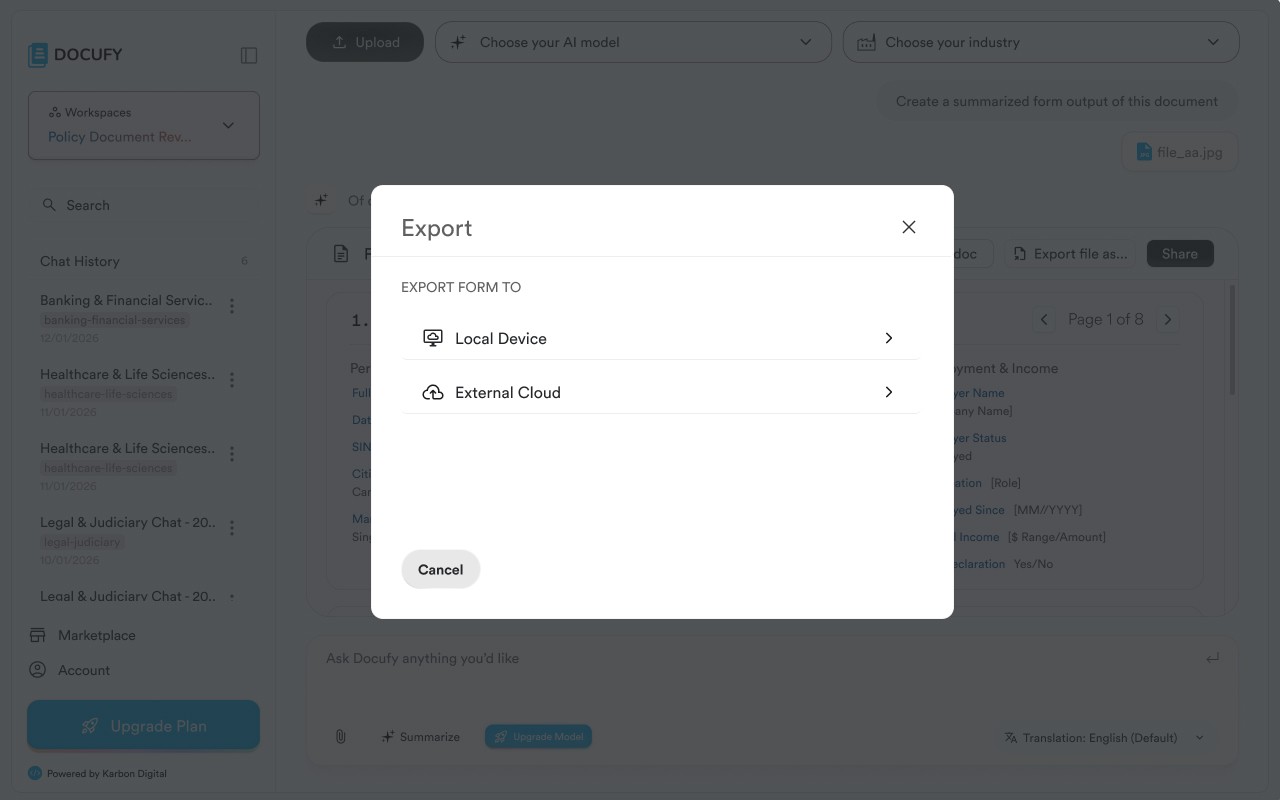
The Export modal presents two destination options. Select the one that matches where you want to save your file.
The Export modal presents two destination options. Select the one that matches where you want to save your file.
The Export modal presents two destination options. Select the one that matches where you want to save your file.
“Local Device” — downloads the file directly to your computer. Click the arrow to choose a file format (PDF, DOCX, XLSX, CSV) on the next screen.
“Local Device” — downloads the file directly to your computer. Click the arrow to choose a file format (PDF, DOCX, XLSX, CSV) on the next screen.
“Local Device” — downloads the file directly to your computer. Click the arrow to choose a file format (PDF, DOCX, XLSX, CSV) on the next screen.
“External Cloud” — sends the file to a connected third-party platform such as Google Drive, Salesforce, or SharePoint.
“External Cloud” — sends the file to a connected third-party platform such as Google Drive, Salesforce, or SharePoint.
“External Cloud” — sends the file to a connected third-party platform such as Google Drive, Salesforce, or SharePoint.
Click “Cancel” at any time to close the modal without exporting.
Click “Cancel” at any time to close the modal without exporting.
Pro tip
If you regularly export to the same cloud platform, connect it once in Account → Integrations so it appears as a quick-pick option every time you export.
If you regularly export to the same cloud platform, connect it once in Account → Integrations so it appears as a quick-pick option every time you export.
3
Step 3 of 3
Connect to an External Cloud Destination
Connect to an External Cloud Destination
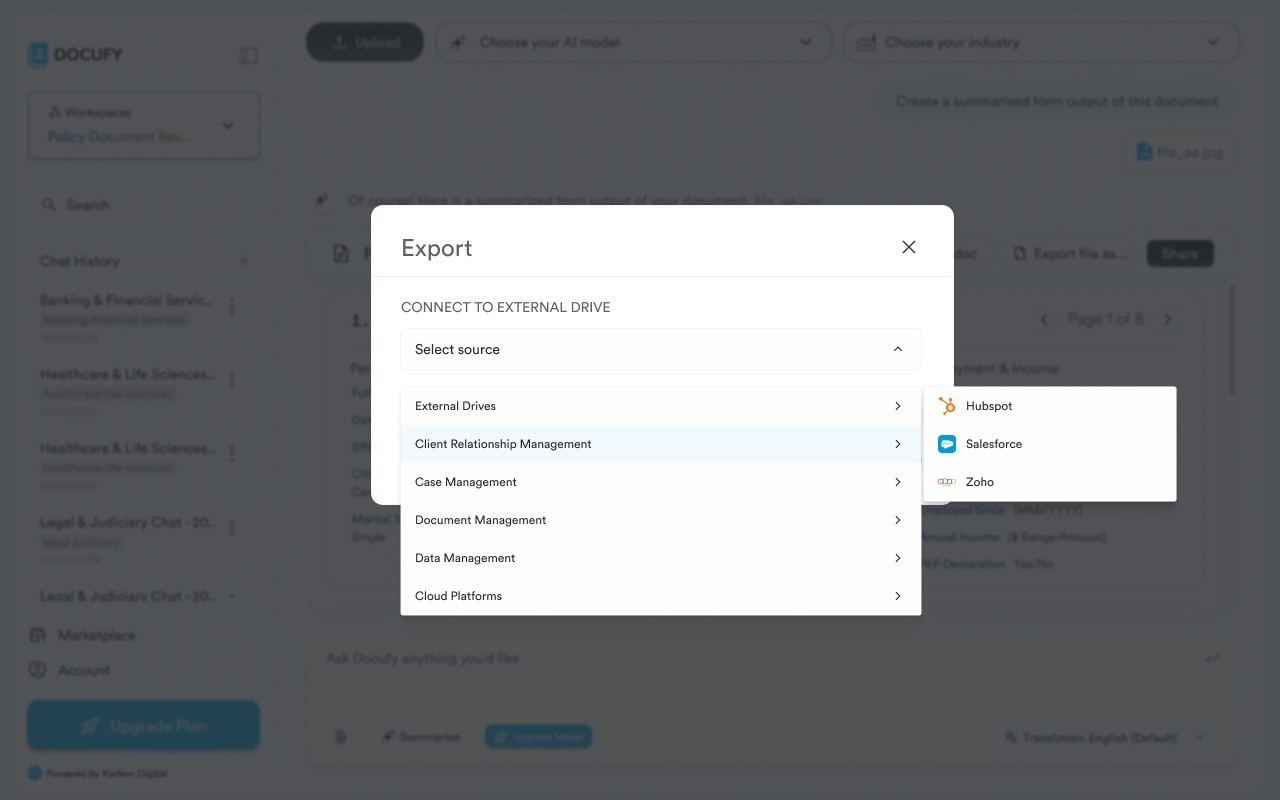
If you selected “External Cloud”, Docufy shows the “Connect to External Drive” screen. Browse the categories, select your platform, and authorise the connection — your file will be sent there automatically.
If you selected “External Cloud”, Docufy shows the “Connect to External Drive” screen. Browse the categories, select your platform, and authorise the connection — your file will be sent there automatically.
If you selected “External Cloud”, Docufy shows the “Connect to External Drive” screen. Browse the categories, select your platform, and authorise the connection — your file will be sent there automatically.
“External Drives” — Google Drive, OneDrive, Dropbox, and other file-storage services.
“External Drives” — Google Drive, OneDrive, Dropbox, and other file-storage services.
“External Drives” — Google Drive, OneDrive, Dropbox, and other file-storage services.
“Client Relationship Management” — Hubspot, Salesforce, and Zoho for saving outputs directly to client or deal records.
“Client Relationship Management” — Hubspot, Salesforce, and Zoho for saving outputs directly to client or deal records.
“Client Relationship Management” — Hubspot, Salesforce, and Zoho for saving outputs directly to client or deal records.
“Case Management” — legal and case-tracking platforms.
“Case Management” — legal and case-tracking platforms.
“Case Management” — legal and case-tracking platforms.
“Document Management”, “Data Management”, and “Cloud Platforms” — for enterprise and industry-specific integrations.
“Document Management”, “Data Management”, and “Cloud Platforms” — for enterprise and industry-specific integrations.
“Document Management”, “Data Management”, and “Cloud Platforms” — for enterprise and industry-specific integrations.
Pro tip
After authorising a cloud platform for the first time, Docufy remembers the connection. Future exports to the same destination skip the auth step and send the file in one click.
After authorising a cloud platform for the first time, Docufy remembers the connection. Future exports to the same destination skip the auth step and send the file in one click.
Export complete — your file is on its way!
Your Docufy output has been exported to your chosen destination. You can re-export the same response at any time by clicking “Export file as…” again from the chat.
Your Docufy output has been exported to your chosen destination. You can re-export the same response at any time by clicking “Export file as…” again from the chat.
Your Docufy output has been exported to your chosen destination. You can re-export the same response at any time by clicking “Export file as…” again from the chat.
Click “Export file as…” on a response card
Click “Export file as…” on a response card
Choose Local Device or External Cloud
Choose Local Device or External Cloud
Select the platform and confirm
Select the platform and confirm



© 2026. All Rights Reserved.
DOCUFY® and DOCUFY AI® are registered trademarks of Karbon Digital Limited, registered with CIPO and the USPTO. All other trademarks are the property of their respective owners.
© 2026. All Rights Reserved.
DOCUFY® and DOCUFY AI® are registered trademarks of Karbon Digital Limited, registered with CIPO and the USPTO. All other trademarks are the property of their respective owners.
© 2026. All Rights Reserved.
DOCUFY® and DOCUFY AI® are registered trademarks of Karbon Digital Limited, registered with CIPO and the USPTO. All other trademarks are the property of their respective owners.
© 2026. All Rights Reserved.
DOCUFY® and DOCUFY AI® are registered trademarks of Karbon Digital Limited, registered with CIPO and the USPTO. All other trademarks are the property of their respective owners.