How-to Guide
How to Check AI Confidence Level
How to Check AI Confidence Level
How to Check AI Confidence Level
Follow these three steps to understand, interpret, and act on the confidence score Docufy displays on every AI-generated Form Summary — so you always know how reliable your extracted document data is before using it downstream.
Follow these three steps to understand, interpret, and act on the confidence score Docufy displays on every AI-generated Form Summary — so you always know how reliable your extracted document data is before using it downstream.
Follow these three steps to understand, interpret, and act on the confidence score Docufy displays on every AI-generated Form Summary — so you always know how reliable your extracted document data is before using it downstream.
1
Generate a Form Summary to Trigger the Confidence Score
2
Act on Low Confidence - Re-upload or Request a Re-analysis
1
Step 1 of 2
Generate a Form Summary to Trigger the Confidence Score
Generate a Form Summary to Trigger the Confidence Score
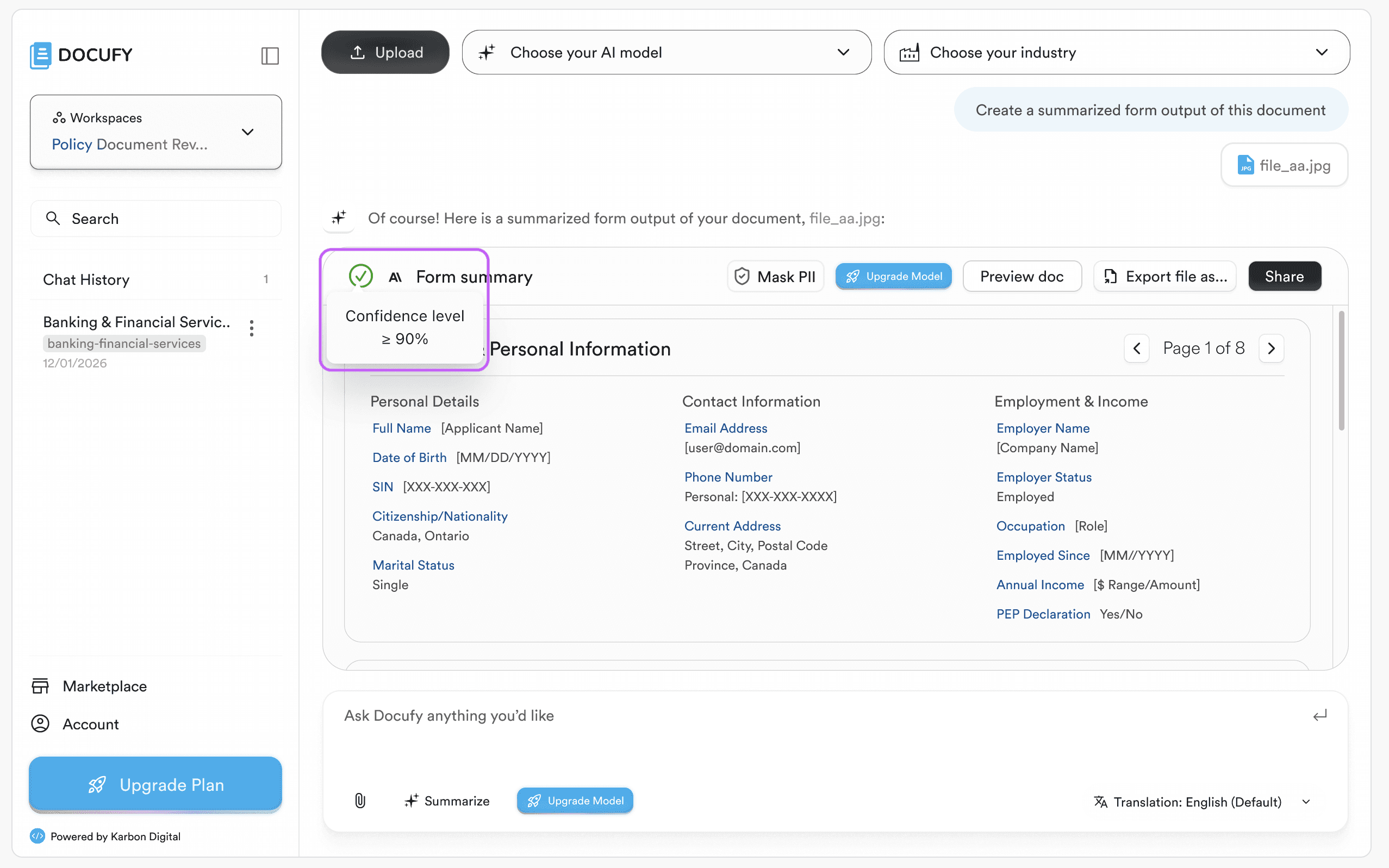
Upload a document and ask Docufy to create a summarised form output. Once the AI has processed the file, it displays a “Form summary” response card. Inside the top-left corner of that card — directly below the green “Form summary” label — Docufy shows a “Confidence level” indicator with a percentage threshold.
Upload a document and ask Docufy to create a summarised form output. Once the AI has processed the file, it displays a “Form summary” response card. Inside the top-left corner of that card — directly below the green “Form summary” label — Docufy shows a “Confidence level” indicator with a percentage threshold.
Upload a document and ask Docufy to create a summarised form output. Once the AI has processed the file, it displays a “Form summary” response card. Inside the top-left corner of that card — directly below the green “Form summary” label — Docufy shows a “Confidence level” indicator with a percentage threshold.
“Confidence level ≥ 90%” means Docufy’s AI is at least 90% confident that every extracted field value matches the source document accurately.
“Confidence level ≥ 90%” means Docufy’s AI is at least 90% confident that every extracted field value matches the source document accurately.
“Confidence level ≥ 90%” means Docufy’s AI is at least 90% confident that every extracted field value matches the source document accurately.
The confidence badge appears only on structured Form Summary cards, not on freeform chat responses or document previews.
The confidence badge appears only on structured Form Summary cards, not on freeform chat responses or document previews.
The confidence badge appears only on structured Form Summary cards, not on freeform chat responses or document previews.
A green checkmark (✓) next to “Form summary” confirms the extraction completed without critical errors.
A green checkmark (✓) next to “Form summary” confirms the extraction completed without critical errors.
A green checkmark (✓) next to “Form summary” confirms the extraction completed without critical errors.
The card also shows “Page 1 of 8” pagination, letting you navigate through a multi-page document’s extracted fields section by section.
The card also shows “Page 1 of 8” pagination, letting you navigate through a multi-page document’s extracted fields section by section.
The card also shows “Page 1 of 8” pagination, letting you navigate through a multi-page document’s extracted fields section by section.
Pro tip
A confidence level of ≥ 90% is Docufy’s quality threshold for reliable extraction. If you see a lower percentage, review the highlighted fields manually — they may contain values the AI was uncertain about due to poor scan quality, handwriting, or ambiguous formatting.
A confidence level of ≥ 90% is Docufy’s quality threshold for reliable extraction. If you see a lower percentage, review the highlighted fields manually — they may contain values the AI was uncertain about due to poor scan quality, handwriting, or ambiguous formatting.
2
Step 2 of 2
Act on Low Confidence - Re-upload or Request a Re-analysis
Act on Low Confidence - Re-upload or Request a Re-analysis
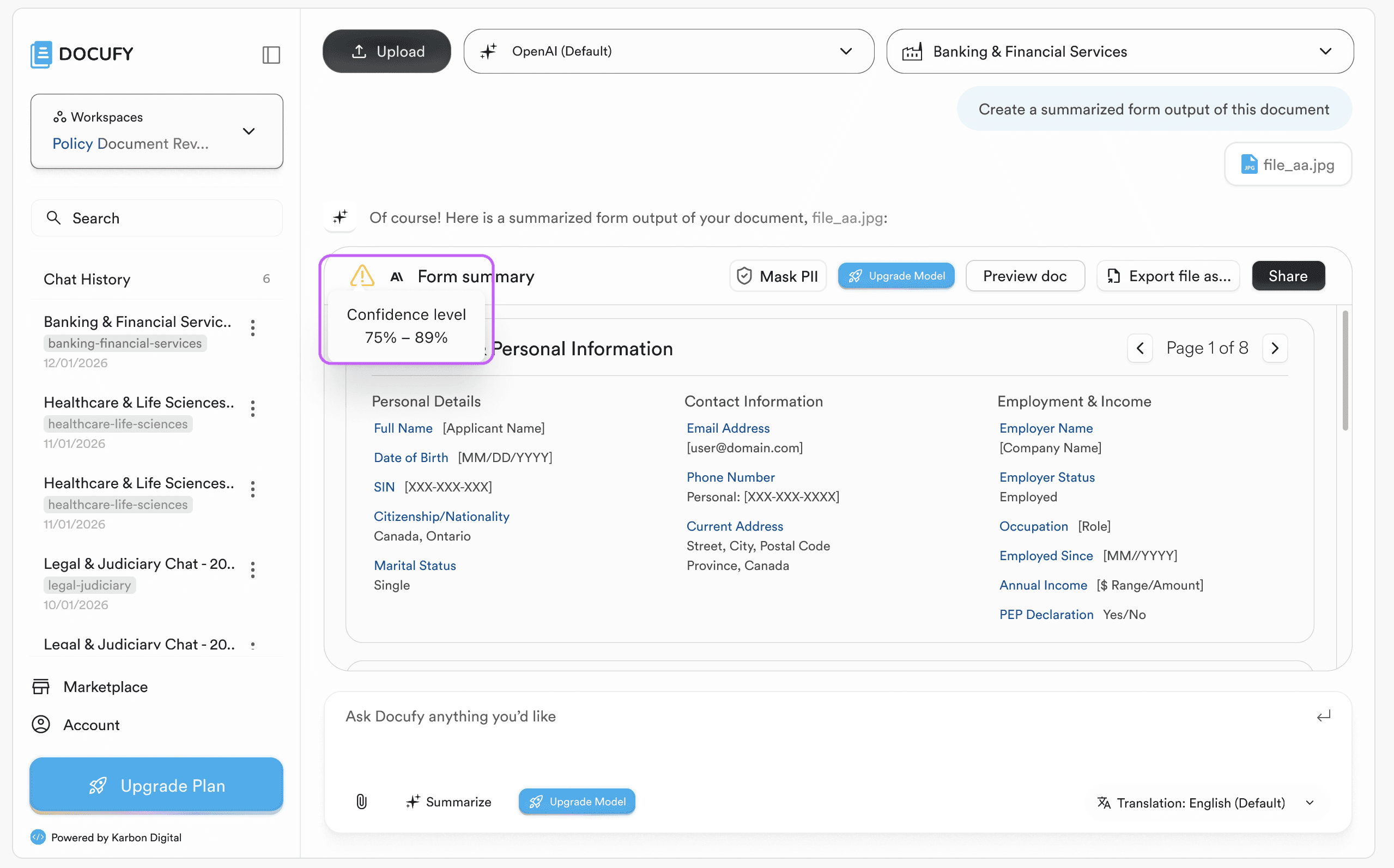
If the confidence level is below the expected threshold (e.g. “≥ 70%” instead of “≥ 90%”), Docufy flags that some fields may be inaccurate. You have three options to resolve this without losing your conversation history.
If the confidence level is below the expected threshold (e.g. “≥ 70%” instead of “≥ 90%”), Docufy flags that some fields may be inaccurate. You have three options to resolve this without losing your conversation history.
If the confidence level is below the expected threshold (e.g. “≥ 70%” instead of “≥ 90%”), Docufy flags that some fields may be inaccurate. You have three options to resolve this without losing your conversation history.
Re-upload a higher-quality version of the document — use the paperclip button in the chat input bar to attach a cleaner scan or a text-based PDF instead of an image.
Re-upload a higher-quality version of the document — use the paperclip button in the chat input bar to attach a cleaner scan or a text-based PDF instead of an image.
Re-upload a higher-quality version of the document — use the paperclip button in the chat input bar to attach a cleaner scan or a text-based PDF instead of an image.
Ask Docufy to re-analyse a specific field — type a follow-up message such as “What is the applicant’s date of birth?” and Docufy will attempt to re-extract just that value.
Ask Docufy to re-analyse a specific field — type a follow-up message such as “What is the applicant’s date of birth?” and Docufy will attempt to re-extract just that value.
Ask Docufy to re-analyse a specific field — type a follow-up message such as “What is the applicant’s date of birth?” and Docufy will attempt to re-extract just that value.
Switch to a more powerful AI model — click “Upgrade Model” in the response toolbar to process the document with a premium model that may achieve a higher confidence score on complex layouts.
Switch to a more powerful AI model — click “Upgrade Model” in the response toolbar to process the document with a premium model that may achieve a higher confidence score on complex layouts.
Switch to a more powerful AI model — click “Upgrade Model” in the response toolbar to process the document with a premium model that may achieve a higher confidence score on complex layouts.
Export the current output anyway using “Export file as…” and annotate the uncertain fields manually in your downstream system.
Export the current output anyway using “Export file as…” and annotate the uncertain fields manually in your downstream system.
Export the current output anyway using “Export file as…” and annotate the uncertain fields manually in your downstream system.
Pro tip
Documents with coloured backgrounds, low-contrast text, handwritten annotations, or heavily compressed JPEGs typically score lower. Whenever possible, provide a native PDF or a 300 dpi+ scan for the highest confidence extraction.
Documents with coloured backgrounds, low-contrast text, handwritten annotations, or heavily compressed JPEGs typically score lower. Whenever possible, provide a native PDF or a 300 dpi+ scan for the highest confidence extraction.
Confidence checked — data verified!
Confidence checked — data verified!
You now know where to find the confidence score, how to interpret colour-coded field labels, and what to do when confidence is lower than expected. Always verify fields marked with placeholder values against the source document before exporting.
You now know where to find the confidence score, how to interpret colour-coded field labels, and what to do when confidence is lower than expected. Always verify fields marked with placeholder values against the source document before exporting.
You now know where to find the confidence score, how to interpret colour-coded field labels, and what to do when confidence is lower than expected. Always verify fields marked with placeholder values against the source document before exporting.
Generate a Form Summary to trigger the confidence score
Generate a Form Summary to trigger the confidence score
Read the “Confidence level ≥ X%” badge on the card
Read the “Confidence level ≥ X%” badge on the card
Re-upload, re-analyse, or upgrade model if score is low
Re-upload, re-analyse, or upgrade model if score is low


© 2026. All Rights Reserved.
DOCUFY® and DOCUFY AI® are registered trademarks of Karbon Digital Limited, registered with CIPO and the USPTO. All other trademarks are the property of their respective owners.
© 2026. All Rights Reserved.
DOCUFY® and DOCUFY AI® are registered trademarks of Karbon Digital Limited, registered with CIPO and the USPTO. All other trademarks are the property of their respective owners.
© 2026. All Rights Reserved.
DOCUFY® and DOCUFY AI® are registered trademarks of Karbon Digital Limited, registered with CIPO and the USPTO. All other trademarks are the property of their respective owners.
© 2026. All Rights Reserved.
DOCUFY® and DOCUFY AI® are registered trademarks of Karbon Digital Limited, registered with CIPO and the USPTO. All other trademarks are the property of their respective owners.