How-to Guide
How to Change Language
How to Change Language
How to Change Language
Follow these two steps to switch the language of Docufy’s AI responses to better suit your needs.
Follow these two steps to switch the language of Docufy’s AI responses to better suit your needs.
Follow these two steps to switch the language of Docufy’s AI responses to better suit your needs.
1
Open the Translation Menu
2
Select Your Preferred Language
1
Step 1 of 2
Open the Translation Menu
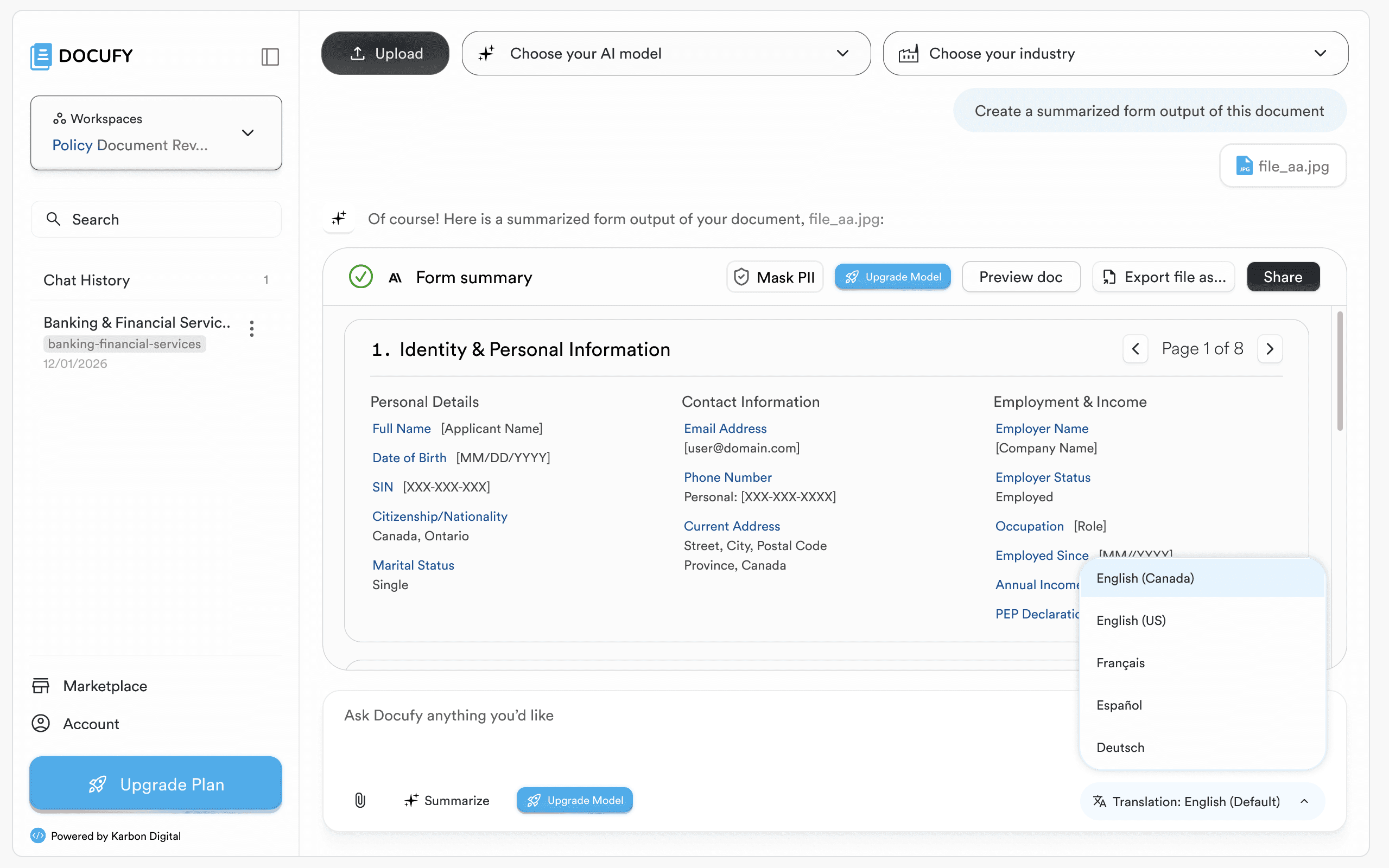
In the chat input bar at the bottom of any conversation, click the “Translation: English” button. A dropdown will appear letting you search for and select the language you want Docufy to use when generating responses.
In the chat input bar at the bottom of any conversation, click the “Translation: English” button. A dropdown will appear letting you search for and select the language you want Docufy to use when generating responses.
In the chat input bar at the bottom of any conversation, click the “Translation: English” button. A dropdown will appear letting you search for and select the language you want Docufy to use when generating responses.
The translation button is always visible in the bottom toolbar, next to “Upgrade Model”.
The translation button is always visible in the bottom toolbar, next to “Upgrade Model”.
The translation button is always visible in the bottom toolbar, next to “Upgrade Model”.
Type into the “Search languages…” field to quickly filter the list by name.
Type into the “Search languages…” field to quickly filter the list by name.
Type into the “Search languages…” field to quickly filter the list by name.
The currently active language is shown with a checkmark (✓) next to it.
The currently active language is shown with a checkmark (✓) next to it.
The currently active language is shown with a checkmark (✓) next to it.
Available options include English, Spanish, French, and more depending on your plan.
Available options include English, Spanish, French, and more depending on your plan.
Available options include English, Spanish, French, and more depending on your plan.
Pro tip
The translation setting applies to the current chat session. Each new chat will start with the default language configured for your workspace.
The translation setting applies to the current chat session. Each new chat will start with the default language configured for your workspace.
2
Step 2 of 2
Select Your Preferred Language
Click the language you want to switch to. Docufy will immediately apply the new language to all AI-generated responses in that conversation. The button label in the toolbar updates to confirm your selection.
Click the language you want to switch to. Docufy will immediately apply the new language to all AI-generated responses in that conversation. The button label in the toolbar updates to confirm your selection.
Click the language you want to switch to. Docufy will immediately apply the new language to all AI-generated responses in that conversation. The button label in the toolbar updates to confirm your selection.
Regional variants are available — for example, “English (Canada)” and “English (US)” are listed separately so terminology and date formats match your locale.
Regional variants are available — for example, “English (Canada)” and “English (US)” are listed separately so terminology and date formats match your locale.
Regional variants are available — for example, “English (Canada)” and “English (US)” are listed separately so terminology and date formats match your locale.
European languages include Français (French), Español (Spanish), and Deutsch (German).
European languages include Français (French), Español (Spanish), and Deutsch (German).
European languages include Français (French), Español (Spanish), and Deutsch (German).
More languages appear on upgraded plans — look for the “Upgrade Plan” button in the sidebar to unlock the full list.
More languages appear on upgraded plans — look for the “Upgrade Plan” button in the sidebar to unlock the full list.
More languages appear on upgraded plans — look for the “Upgrade Plan” button in the sidebar to unlock the full list.
The toolbar label updates instantly (e.g. “Translation: Français”) to confirm the switch.
The toolbar label updates instantly (e.g. “Translation: Français”) to confirm the switch.
The toolbar label updates instantly (e.g. “Translation: Français”) to confirm the switch.
Pro tip
Admins can set a default translation language for the entire organization in Account settings, so every user starts with the right language without having to change it manually.
Admins can set a default translation language for the entire organization in Account settings, so every user starts with the right language without having to change it manually.
Language changed!
Docufy is now configured to use the language you selected. Remember to open a new chat whenever you want to process a document under the new language context.
Docufy is now configured to use the language you selected. Remember to open a new chat whenever you want to process a document under the new language context.
Docufy is now configured to use the language you selected. Remember to open a new chat whenever you want to process a document under the new language context.
Open the translation menu
Open the translation menu
Select your new language
Select your new language


© 2026. All Rights Reserved.
DOCUFY® and DOCUFY AI® are registered trademarks of Karbon Digital Limited, registered with CIPO and the USPTO. All other trademarks are the property of their respective owners.
© 2026. All Rights Reserved.
DOCUFY® and DOCUFY AI® are registered trademarks of Karbon Digital Limited, registered with CIPO and the USPTO. All other trademarks are the property of their respective owners.
© 2026. All Rights Reserved.
DOCUFY® and DOCUFY AI® are registered trademarks of Karbon Digital Limited, registered with CIPO and the USPTO. All other trademarks are the property of their respective owners.
© 2026. All Rights Reserved.
DOCUFY® and DOCUFY AI® are registered trademarks of Karbon Digital Limited, registered with CIPO and the USPTO. All other trademarks are the property of their respective owners.